Import and export
Import from a card
File › Import from Card… when a memory card or a camera is connected.
- Darkroom reads the card and shows its RAW photos. New Photos Only unchecks
those already imported; Check All / Uncheck All to choose yourself. A
click checks or unchecks a photo;
Shift+clickon another one does the same for every photo in between. - Folder: where to store the photos (the Pictures folder at first, then the one chosen last time).
- Subfolder: named after the capture date (e.g.
2026-07-14); replace it with a meaningful name if you like (e.g. Bandol weekend). - Import: the photos are copied, never moved or deleted from the card. A file that already exists is never overwritten.
Export
File › Export… (Ctrl+Shift+E), or the icon at the top right. From the grid, all
the selected photos are exported in one go.
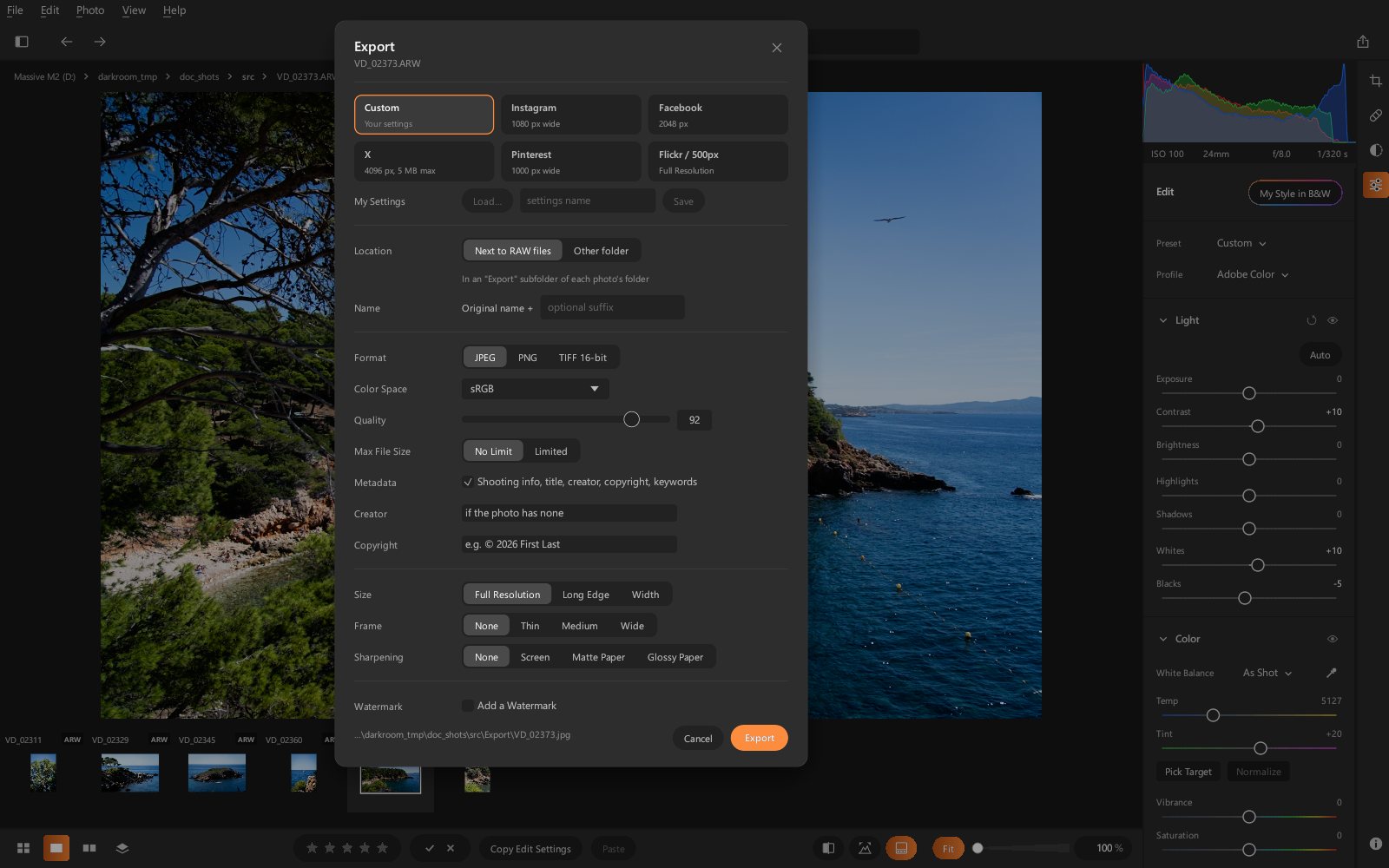
Ready-made destinations
| Choice | Settings |
|---|---|
| Custom | your settings |
| 1080 px wide | |
| 2048 px | |
| X | 4096 px, 5 MB max |
| 1000 px wide | |
| Flickr / 500px | full resolution |
For networks that require an aspect ratio (Instagram, for example), photos that are too wide or too tall get white or black borders instead of being cropped by the network.
Options
- Location: Next to RAW files (in an
Exportsubfolder of each photo's folder; for a photo on a memory card, inPictures\Export, nothing is written to the card) or Other folder. - Name: the original name, followed by an optional suffix.
- Format: JPEG, PNG or TIFF 16-bit (for editing elsewhere).
- Color Space: sRGB (the web, social networks, most screens), Display P3 (recent screens, Macs, phones), Adobe RGB (1998) (printing) or ProPhoto RGB (the widest, best kept for 16-bit TIFF for editing in Adobe Photoshop). The color space's ICC profile is embedded in the file. The ready-made destinations export in sRGB.
- JPEG Quality, and Max File Size: Limited lowers the quality if needed to stay under the chosen size.
- Metadata: the shooting info (EXIF), title, caption, creator, copyright, keywords, rating and label are written into the JPEG (read by Adobe Lightroom, Photoshop and stock agencies). Creator and Copyright fill in those of photos that have none.
- Size: Full Resolution, Long Edge or Width in pixels.
- Frame: Thin, Medium or Wide, white or black, of equal thickness all around the photo and included in the requested size (the chosen long edge or width remain the file's).
-
Output Sharpening: Screen, Matte Paper or Glossy Paper, with an amount of Low, Standard or High.
-
Watermark: a text ("© Your name", white or black) or a logo (PNG image, with its transparency), with adjustable Size (height as a % of the photo's short side) and adjustable Opacity, placed in a corner, at the middle of an edge or in the center. It is applied to the photo after sharpening, without touching the borders.
Options are remembered. Right-click a photo › Export with Previous exports without reopening the window.
My Settings
Below the destinations, My Settings keeps sets of options under a name of your choice
("A4 print", "Website", "Client"…): type a name, then Save; Load…
brings them back (the cross on a row deletes it). They are stored in
%APPDATA%\Darkroom\export_presets.
Export renders the photo at full resolution on the graphics card, with exactly the same look as on screen.