Library, ratings and keywords
The Library (G key) shows the folder's photos in a grid.
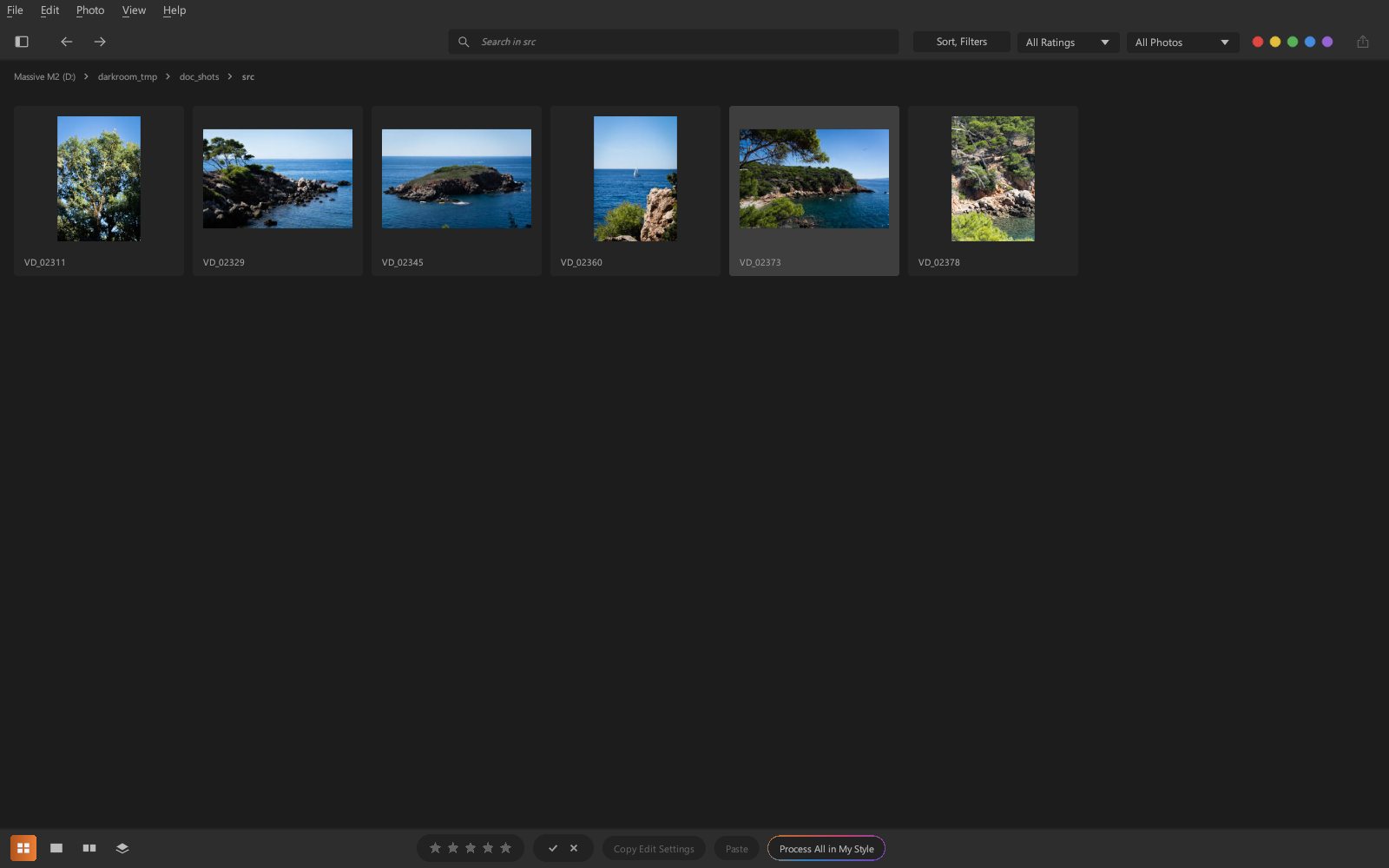
Open a folder
File › Open Folder… (Ctrl+O), or the left panel, Browse tab
(drives and folders). Darkroom reads the RAW files of all common cameras, as well as DNG and
JPEG files.
At startup, Darkroom reopens the last folder you used, without asking. The first time, or if that folder is gone (drive unplugged, folder renamed: Darkroom tells you), it opens the computer's Pictures folder; if there are no photos, the grid explains how to choose a folder.
Select
- Click: choose a photo; double-click or
Enter: open it in Develop. Ctrl+click: add a photo to the selection or remove it;Shift+click: select a range.Ctrl+A: select all;Esc: clear the selection.- Right-click a photo: export, rate, flag, label, copy / paste the settings, reset, create a virtual copy.
Rate and sort
| Key | Effect |
|---|---|
0 to 5 |
star rating (0 removes the rating) |
P |
flag as Pick |
X |
flag as Reject |
U |
remove the flag |
6 to 9 |
color label red, yellow, green, blue (press again to remove it) |
Ratings, flags and labels apply to the whole selection. The purple label, which has no key, is set from the right-click menu (Color Label) or in the Info panel, where clicking the selected swatch removes it. In the grid, the label colors the bottom of the cell.
Above the grid are the filters: minimum rating (≥ 1 ★ to ≥ 5 ★), flag (All Photos, Picks, Exclude Rejects, Rejects) and label: clicking a color swatch shows only the photos with that label, clicking it again shows them all.
Ratings and labels set in Adobe Lightroom (saved in the .xmp files or the
catalog) are carried over.
Photo › Auto Advance: after you set a rating, flag or label from the keyboard, the next photo is shown, so you can sort a shoot without leaving the keyboard.
Sort and filter
The Sort, Filters menu, above the grid:
- Sort By: file name, capture date (the actual order of a shoot, even when the camera's counter has been reset or several cameras are mixed), rating (best first) or last edited; Reverse Order flips the list.
- Day, Camera, Lens: show only the photos from one shooting day, one camera or one lens (each choice shows its number of photos). A dot (●) on the button means one of these filters is active; Clear These Filters removes them.
Sorting and filters also apply to the filmstrip and to moving from one photo to the next.
Rename photos
Photo › Rename Photos… (F2, or right-click › Rename) gives the
selected photos a name built from a template, for example Japan_{date}_{num}:
| Token | Replaced by |
|---|---|
{name} |
the original name |
{date} |
the capture date (YYYYMMDD) |
{time} |
the capture time (HHMMSS) |
{num} |
a number (001, 002…), in the displayed order |
The preview shows the first names. Everything that goes with a photo follows its name: the
camera JPEG, its settings (.darkroom, .xmp), its virtual copies; collections are
updated. Nothing is renamed if any of the new names is already taken. On a memory card, the
dialog advises against it: the camera may no longer show the renamed photos; import them
instead, then rename the copies.
Delete photos
Photo › Delete Photo… (Del, or right-click › Delete Photo…) moves the selected photos
to the Trash, after confirmation. Move to Trash has the focus first (gradient outline);
← / → or Tab move it to Cancel and back, Enter or Space confirms the focused
button, Esc always cancels. Each photo goes with
everything that comes with it: the camera JPEG, its settings (.darkroom, .xmp) and its
virtual copies; restored from the Trash, it comes back as it was, collections included. For a
virtual copy, only its settings are deleted, the original stays. The next photo is then
selected.
On a memory card, a USB stick or a network drive there is no Trash: the dialog says so, and its Delete Permanently button erases the photos for good.
In Masking and Remove, Del deletes the selected mask or retouch, never the photo.
Collections
A collection groups photos from any folders under one name ("Best of summer", "Portfolio"…), without moving or copying them.
- Add: right-click photos › Add to Collection › a collection, or
New Collection…; the
+in the Collections section (at the bottom of the left panel) › New Collection… creates a collection with the photos selected in the grid. - Open: clicking the collection shows it in the grid, like a folder (ratings, flags, sorting, export and copy-pasting settings work the same way).
- Remove a photo: right-click › Remove from Collection (the photo stays on the disk). Right-click a collection to rename or delete it.
Collections are saved in %APPDATA%\Darkroom\collections.txt. A photo that has been
moved or deleted no longer appears in them.
Rule-Based Collections
A rule-based collection fills itself: it holds the photos
of a folder (subfolders included) that meet all of its rules, for example
"4 stars and up, picked, shot at 135 mm in 2026". The + in the
Collections section › New Rule-Based Collection… opens its rules:
- Folder searched (the open one by default; Choose… for another one);
- minimum Rating, Flag (picked, rejected, unflagged), Color Label;
- Keyword, Camera, Lens: contained text (case-insensitive);
- Capture Date from … to … (dates as
YYYY-MM-DD; either one can be left empty); - Edited: photos that have been edited, or never edited.
Its photos are searched for each time it is opened, in the background: a photo rated, edited or
added to the folder since then shows up in it. Hidden folders and Export folders are not
searched. Right-click the collection › Edit Rules….
HDR merge
For a scene with too much contrast for a single shot (an interior with a window, backlight), take
several shots at different exposures (bracketing), select them in the grid,
then right-click › Merge to HDR. Darkroom aligns them (slight handheld
movements are corrected), measures the exposure difference of each shot, and combines them into a single
<name>-HDR.dng file, saved next to the first shot and selected in the grid.
This DNG is developed like a RAW file, with its full dynamic range: the shadows come from the bright shots (less noise), the highlights from the dark ones. Lower Highlights and raise Shadows, or use Auto in the Light section.
Anything that moved between shots (people, foliage, water) is taken from the middle exposure shot only, with no ghosting. Merging requires shots from the same camera, with the same dimensions, from a Bayer sensor (not X-Trans).
Panorama
For a wider field of view than your lens allows, take several shots while turning on the spot (about one third overlap, same exposure if possible; handheld, without a tripod, is enough), select them in the grid, then right-click › Merge to Panorama and choose the projection:
| Projection | For |
|---|---|
| Spherical | all panoramas, even very wide ones or ones with several rows |
| Cylindrical | a single row of shots: verticals stay straight |
| Perspective | a moderate field of view: straight lines stay straight (stretched edges) |
Darkroom finds the points the shots have in common, works out the camera rotation between them
(and the exact focal length), corrects lens distortion and vignetting, evens out the
exposures and levels the horizon. The result, cropped to the largest area with no empty space, is
saved next to the first shot as <name>-Pano.dng and selected in the
grid. It is developed like a RAW file; the lens correction is already applied.
Anything that moved between shots (passers-by, grass in the wind, foreground shifted by parallax) is taken from a single shot, with no ghosting. The shots must come from the same camera; a full turn (360°) is not supported.
Compare two photos
C (or the two-view icon, bottom left) puts the selected photo next to the following one
— or next to another photo chosen with Ctrl+click in the grid:
- clicking a photo makes it active (light frame: ratings and flags apply to it) and zooms to the same spot on both photos; clicking again goes back to the whole photos;
→/←: next or previous candidate;↑: the candidate becomes the selection;- double-click: opens the photo;
EscorG: back to the grid.
The comparison uses the preview the camera saved in the RAW file (instant), without your settings.
Keywords
The Info panel (i icon, bottom right) shows the shooting information and
the photo's keywords, separated by commas (e.g. Brittany, sea, family). Lightroom
keywords are carried over.
Below the keywords are the photo's title, caption, creator and copyright,
saved when you leave the field and written into exported JPEGs. Those entered in
Lightroom (.xmp, catalog) are carried over.
The search at the top of the screen filters the folder by file name or by keyword.
Apply settings to several photos
- Develop a photo, then Copy Edit Settings (
Ctrl+Shift+C): check the groups to copy (profile, white balance, light, curves, detail, effects…), then Copy (Enter). The boxes stay checked for the next copy. - Select the other photos in the grid.
- Paste (
Ctrl+Shift+V, or Edit › Paste to Selection).
A checked group is copied in full: a mixer or a curve left neutral on the source photo resets those of the photos it is pasted onto.
Masks, Remove and Crop are unchecked by default. When checked, they replace those of the photos they are pasted onto: the same sensor dust removed across a whole series, the same crop, the same darkened sky. Areas painted with the Brush or picked with the Magic Brush are carried over as they are, which suits a series shot from the same spot. AI erasures, specific to each photo's content, are not copied. On a photo edited in Lightroom and never opened in Darkroom, whose crop or masks come from Lightroom, only the development settings are pasted.
Edit › Equalize Exposures gives the selected photos the same brightness as the open photo, based on how they were shot (shutter, aperture, ISO) and its Exposure slider: for a series shot in auto mode whose brightness varies from photo to photo.
The Process all in my style button, at the bottom of the grid, develops in one go the photos not yet edited (see My Style).
Virtual copies
Photo › Create Virtual Copy (Ctrl+Shift+D): a second version of the same photo,
with its own settings (a color version and a black-and-white version, for example),
without duplicating the RAW file.