Remove tool
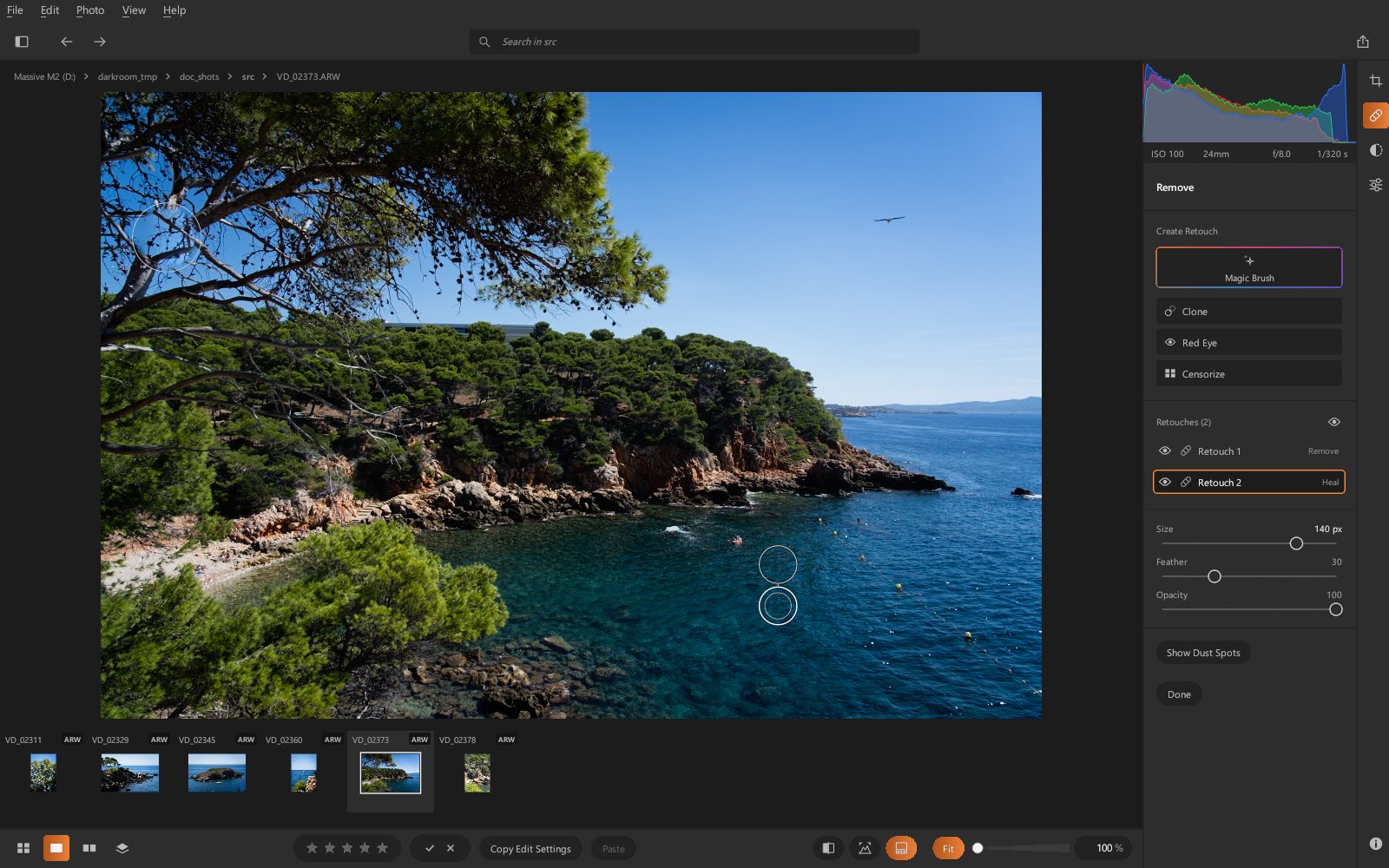
The Remove tool (Q key) erases dust, blemishes and distracting elements. To aim
precisely, Z zooms in on the point under the pointer (and back out to the whole photo);
holding Space gives you the hand to move around the zoomed photo.
Clone: circular retouches
With the Clone tool:
- click a blemish: a circle of the chosen size covers it with a nearby area picked automatically;
- drag to draw a larger circle;
- then move the target or the source (the second circle) if the chosen area doesn't work, and drag the edge of the circle to change its size.
Settings: Size (also the mouse wheel, [ and ]), edge Feather, Opacity.
The eye at the top of the retouch list (or H) hides or shows the circles.
Adobe Lightroom's retouches (Heal, Clone, Remove) are imported from the .xmp files and
appear in the same list.
Show Dust Spots
Sensor dust is hard to see on a sky. Show Dust Spots (or A), at the bottom of the
panel, shows the photo in black and white: even areas are black, and dust and small
blemishes stand out as white circles. Sensitivity sets how large a difference makes a
point stand out; a texture (sea, foliage) also shows up white. A corrected spot disappears
from the view, so you can see how far along you are. The view turns off when you leave the
tool and is never exported.
Red Eye
With the Red Eye tool, click the eye, or drag to circle it: inside the circle, the red of the pupil is brought down to the level of the other colors, leaving the rest of the eye alone. Darken sets how dark the pupil gets; Size and Feather work as for Clone.
Censorize
With the Censorize tool, click or drag to circle what must be hidden (a face, a number plate): the area is pixelated, on screen and on export. Block Size sets the pixelation.
Magic Brush: AI Erase
To erase a person, an object, a figure that spoils a landscape:
- Choose the Magic Brush and paint over the element: the selection snaps to
the edge of the painted object, at the scale of your stroke (a stroke over a good part of a
person takes the whole person, a dab on a detail takes only that detail). Painting over
the selection extends it;
Altgives you the eraser for the duration of a stroke, and the AI recomputes the erased area. Uncheck AI snap to select the painted area exactly as painted, without object detection. The AI cuts the object out closely: a hand, a pole, a distant passer-by keep their outline, and isolated specks it would pick up along with the object are discarded. It is the displayed selection that will be erased: whatever is not selected (shoes, a bag held in the hand, a shadow, a person in front of the erased background) stays; add it with a stroke before erasing. - Erase Selection (or
Delete): the AI fills the selection, plus a small margin around it so no fringe is left, with a plausible background.Escdeselects.
Variations
Each removal offers three fill variations. A removal that has just been computed is selected: the ‹ 1 / 3 › arrows below the opacity switch from one variation to another (for an older removal, select it in the list first).
- 1: the fill offered first;
- 2: another solution, just as plausible;
- 3: a slightly larger filled area; often erases a trace left around the object, but may eat into a neighboring object.
The other variations are computed in the background as soon as the removal is selected: switching between them is instant.
Results
AI Erase works best on even backgrounds (sky, sea, grass, wall, ground). On a large area surrounded by detail, the fill may be blurry or rough: try the other variations, erase in several passes, or touch up with Clone.
The computation runs on your computer, offline: a few seconds depending on the size of the area.
The retouch list
As with masks: an eye to hide a retouch, a click to select it, Delete to delete it
(when nothing is selected with the magic brush); the right-click menu also offers
Clear All to start over. Done (or Q) exits the tool; the shortcuts are listed in its tooltip.