The Edit panel
The right panel (Edit icon) gathers the settings, arranged in sections. They never
modify the RAW file: they are saved next to the photo, in a .darkroom file.
For each effect, one main setting is usually enough (the Amount); the fine settings are tucked away in a closed submenu (Shape, Look, Refine, Settings) that opens with a click.
Using the sliders
- Drag the slider, or drag over the value shown on the right (to the right it goes
up, to the left it goes down;
Shiftfor fine adjustment). - Click the value to type it in.
- Double-click the slider or its name to return to the default value.
Each section has, to the right of its title:
- an eye that hides the section's effect while you compare;
- a reset button, when one of its settings has been changed.
Ctrl+click on a section title opens only that section and closes the others. A right-click
on the title offers the same actions.
The sections you open or collapse, and their submenus (Refine, Shape…), stay as you left them: from one photo to the next, after a visit to the Library and at the next launch. Each workspace keeps its own.
Preset and profile
- Preset: applies a saved set of settings (see Presets).
- Profile: the base color rendering. Adobe Color is Adobe Lightroom's default rendering; Adobe Landscape, Portrait, Vivid, Neutral, Standard and Monochrome, as well as the creative profiles (Artistic, Modern, Vintage, B&W…), are available when the Adobe profiles are installed. Creative profiles have an Amount slider. Hovering over a profile in the list previews it on the photo.
Light
Exposure, Contrast, Highlights, Shadows, Whites, Blacks: calibrated
on Lightroom exports, these sliders render settings taken from an .xmp file or a catalog
very faithfully.
The Auto button sets exposure, highlights, shadows, whites and blacks based on the photo:
brightness brought toward a mid-gray (a dark or bright scene partly stays that way), an
overly bright sky or window softened, blocked shadows lifted, histogram stretched to the edges
without clipping. It is a starting point: every slider can still be changed, and Ctrl+Z
goes back.
Color
- White Balance: As Shot (the camera's), Auto (estimated from the photo), or a preset (Daylight, Cloudy, Shade, Tungsten, Fluorescent, Flash). Then Temp and Tint.
- White Balance Selector (at the end of the White Balance row): then click a gray or an
unclipped white in the photo to make it neutral.
Esccancels. - Vibrance (mostly saturates dull colors, spares skin tones) and Saturation.
Color Mixer
Hue, saturation and luminance of eight colors (reds, oranges, yellows, greens, aquas, blues, purples, magentas). In black and white, the mixer sets the brightness given to each color.
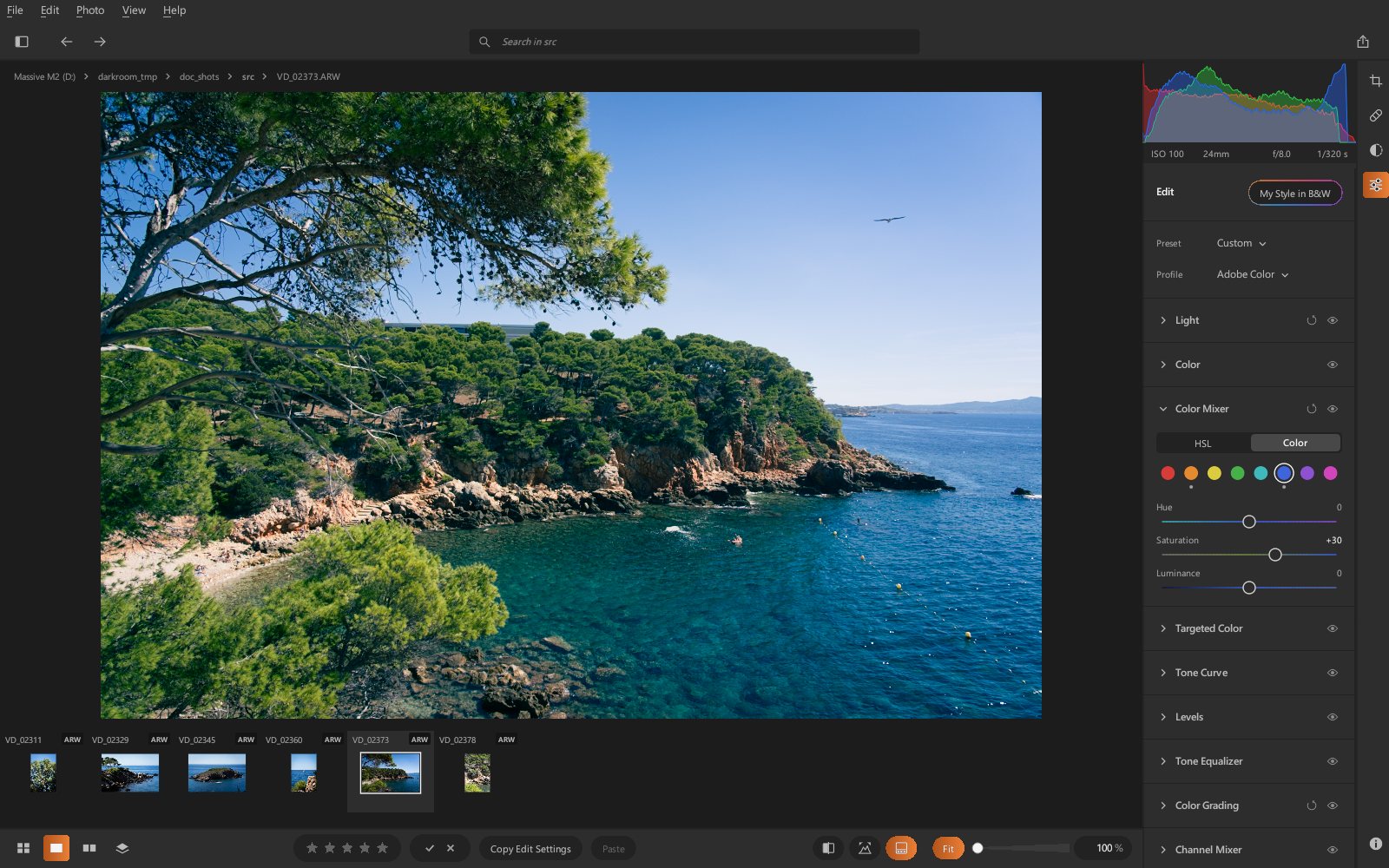
Targeted Adjustment: the target to the right of the Hue / Saturation / Luminance tabs
(and at the top of the B&W Mixer) lets you adjust directly on the photo. Press on a color,
then drag up to increase, down to decrease: that color's sliders move, shared between the two
neighboring ranges when the color falls between them (a blue-green sky adjusts the blues and
the aquas). The open tab chooses what is adjusted. Esc or another click on the target
ends it.
Tone Curve
Parametric curve (highlights, lights, darks, shadows) and point curve, global or per red, green or blue channel.
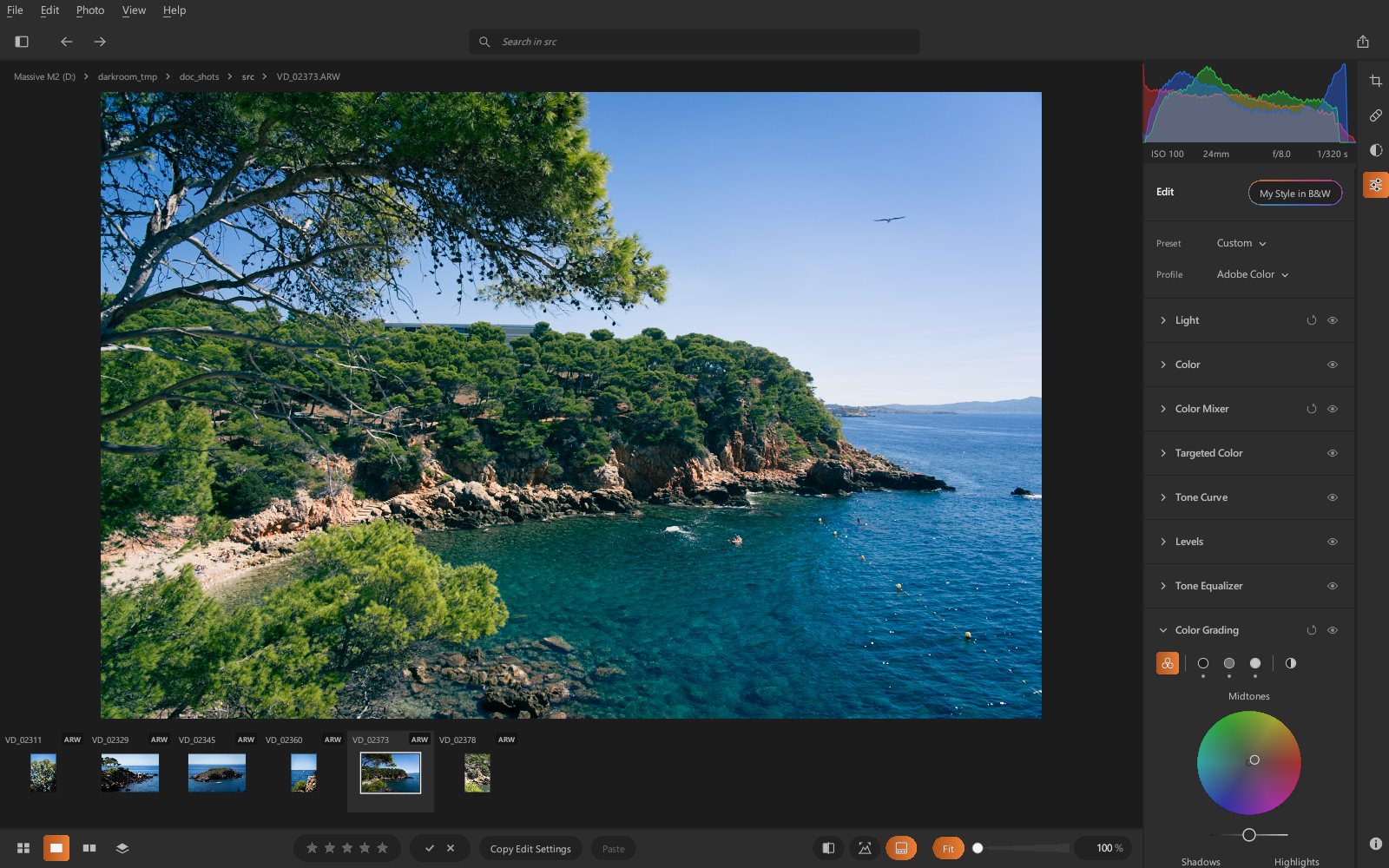
Color Grading
Hue and saturation of the shadows, midtones and highlights, with their luminance, the blending and the balance between shadows and highlights.
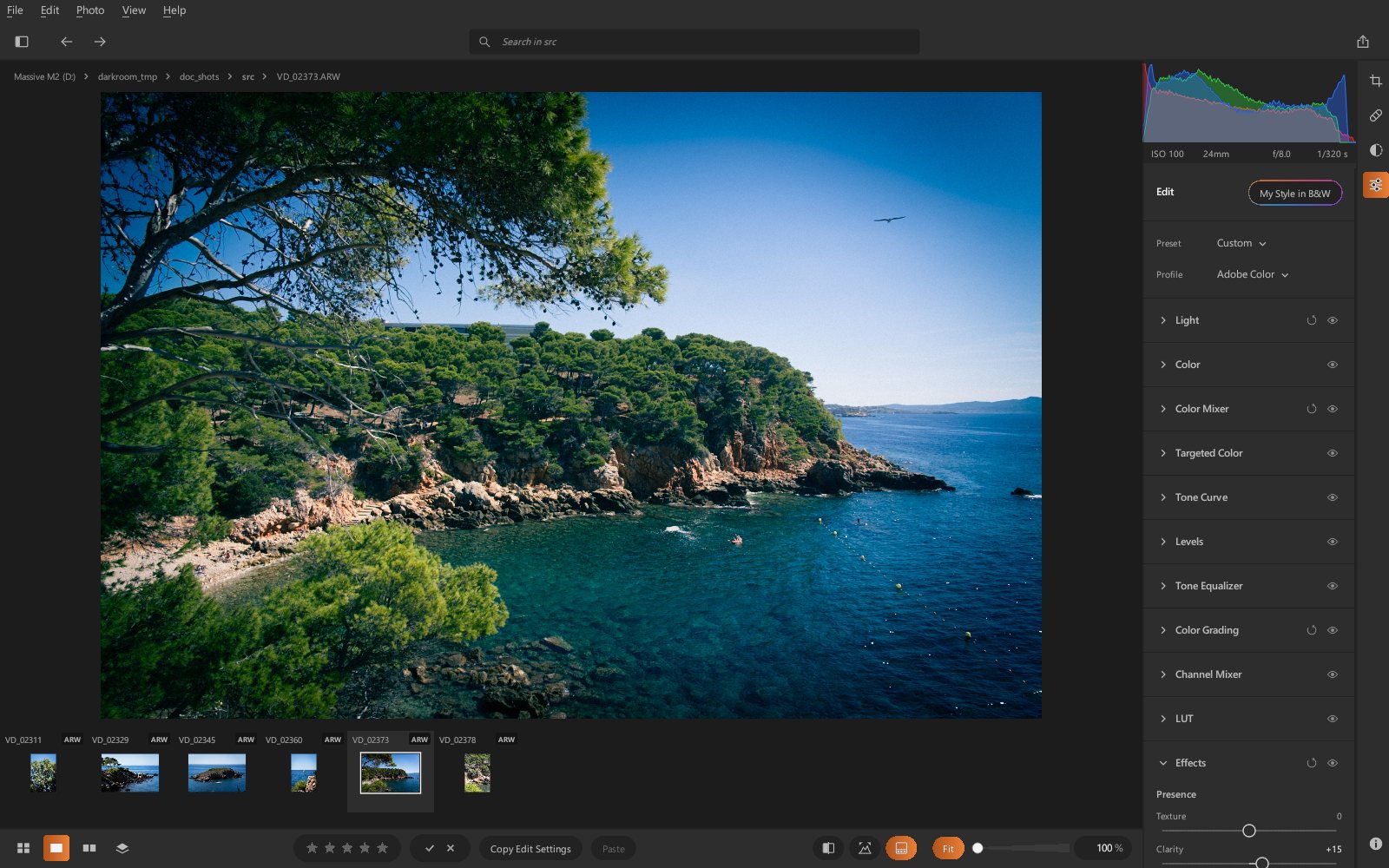
Effects
- Texture: fine details (skin, foliage) without touching the larger shapes.
- Clarity: local contrast of the midtones.
- Dehaze: removes (or adds) atmospheric haze.
- Post-crop Vignette: the amount; in Shape, the style, the midpoint, the roundness, the feather and the highlights.
- Grain: the amount; in Look, the size and the roughness.
Lens Blur
The background (and the foreground) is blurred according to the depth of the scene, estimated by the AI, as with a wide aperture.
- Apply: the depth is computed (less than two seconds the first time), then the in-focus range places itself on the subject at the center of the image.
- Amount: the strength of the blur; the farther a point is from the in-focus range, the more blurred it is.
- Focal Range: the bar shows the depth, from near (left) to far (right); the white box
is the in-focus range. Drag it, stretch its edges, or click the bar to center it on a
distance. Pick on Photo: a click on the photo places the in-focus range at that point's
distance (
Esccancels). Visualize Depth shows the estimated map: warm in the foreground, cool in the distance, the in-focus range lightened. - Bokeh: the shape of the blurred lights (circle, soap bubble, five blades, ring), the boost that brings out the small lights, and the cat eye that flattens them into almond shapes toward the edges, like a fast lens wide open.
The blur is computed by the graphics card and applied before the rest of the development: light, colors, masks and effects act on the blurred image, on screen as well as on export. What has been removed or retouched does not reappear in the background.
Miniature (at the top of the panel, instead of Depth (AI)): the effect of a tilt-shift lens, which makes landscapes look like scale models. A horizontal band stays sharp (Position: its height in the photo, Width: its size), blur grows above and below it; no AI, so it is instant. Amount and bokeh as above.
Haze and Relight
Two settings based on the depth of the scene, estimated by the AI as for lens blur (computed in one to two seconds the first time you use them on a photo):
- Haze: a veil of light that gets thicker with distance, like heat haze over a landscape or smoke on a concert stage. Amount: its density; under Settings, Distance (where it starts: close to the camera or only far away), Light (dark or bright haze; lower it on a night photo) and Color (cool and bluish, or warm and golden).
- Relight: one exposure for the foreground, another for the background, from −2 to +2 EV: brighten a subject in front of a background, darken a background that stands out too much. Under Settings, Boundary places the split between the two, blended.
Like the rest of the development, they apply on screen and on export, without changing the RAW file. The depth map stays approximate on fine details: thin branches close to the camera against a distant sky may get a little haze.
Detail
- Sharpening: the amount; in Refine, the radius, the detail and the masking (masking
limits sharpening to the edges; holding
Altwhile adjusting it shows the affected area). - Noise Reduction: the amount (luminance noise); in Refine, its detail and the color noise (the default value is almost always fine).
- AI Denoise: a neural network cleans the sensor data before development, adjustable with its strength. The computation takes from a few seconds to a few tens of seconds, then the result is kept in memory.
Optics
- Enable Profile Corrections: lens distortion and vignetting, based on Adobe profiles
(
.lcp) or on the corrections stored in the file (Sony, DNG…). - Remove Chromatic Aberration: removes lateral color fringing.
- Defringe (submenu): purple and green fringes, amount and hues.
- Geometry (submenu): perspective corrections, Vertical, Horizontal, Rotate, Aspect, Scale, X Offset and Y Offset (see Crop and geometry).
Calibration
Shadows tint, then hue and saturation of the red, green and blue primaries.
Copy, paste, reset
Ctrl+Shift+C/Ctrl+Shift+V: copy the settings of a photo and paste them onto others (also from the grid, onto several photos).Ctrl+Shift+R: reset the photo.Ctrl+Shift+D: create a virtual copy (a second version of the same photo, with its own settings).