The interface
Darkroom has two screens: the Library (photo grid, G key) and Develop (one photo,
D key). A third one, Retouch (Ctrl+E), takes the developed photo into
layers.
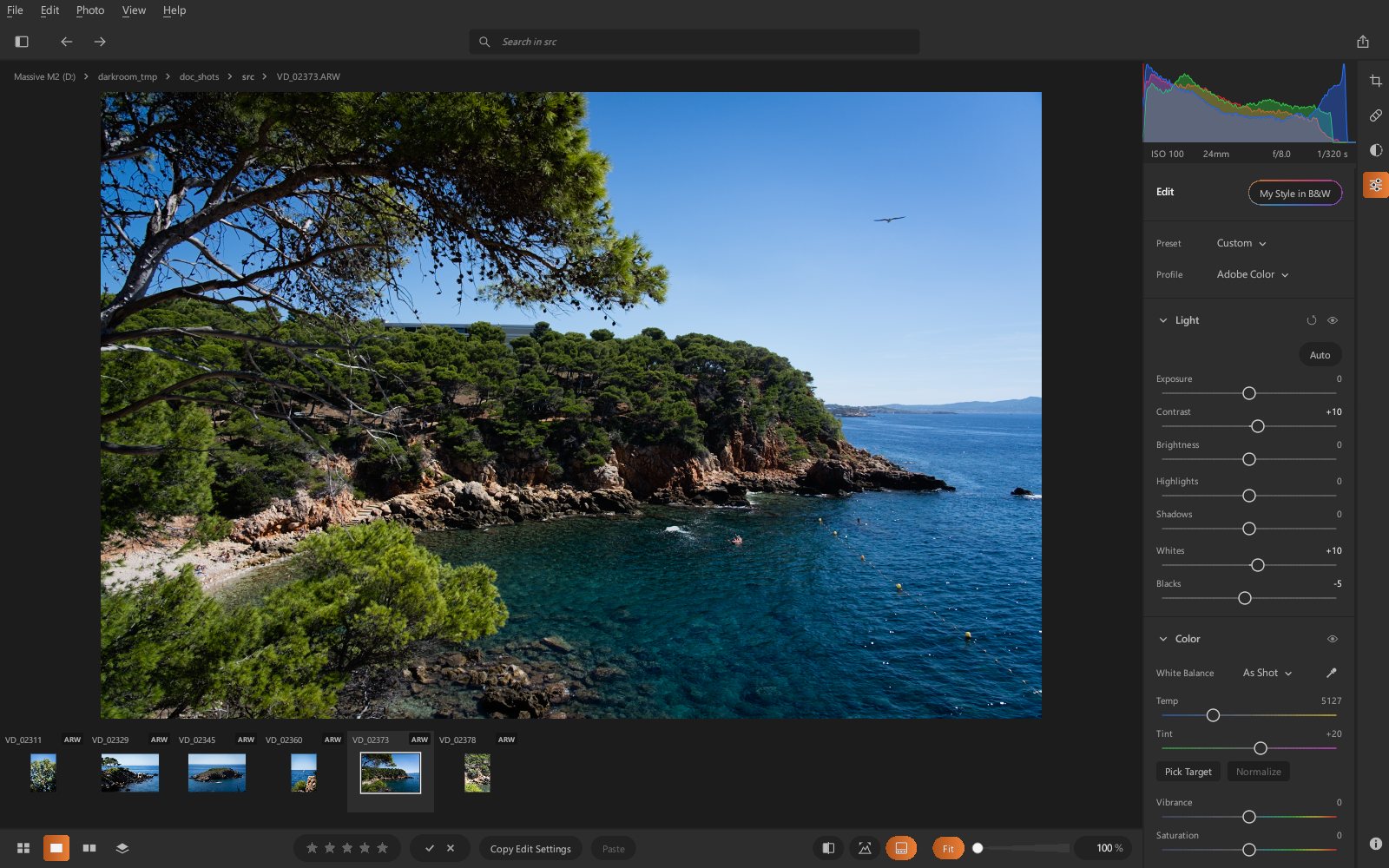
The areas of the Develop screen
| Area | Contents |
|---|---|
| Menu bar | File, Edit, Photo, View, Help |
| Toolbar | left panel, previous / next photo, search, export |
| Left panel | Browse (drives and folders), Snapshots, History, and at the bottom the Collections |
| Viewer | the photo; a double-click zooms in on the clicked point, another one returns to the whole photo. When the photo is zoomed in, a navigator at the bottom right shows the displayed part; clicking or dragging inside it moves the view |
| Right panel | histogram, shooting information, then the settings (Edit) |
| Icon bar (on the right) | Crop (C), Remove (Q), Masking (Shift+W), Edit; clicking the selected icon again (Edit, Info) closes the right panel to enlarge the photo, clicking an icon opens it again |
| Filmstrip | the photos in the folder; a click opens a photo. F6, View › Hide Filmstrip or the button to the right of the clipping warning, at the bottom, hides it to enlarge the photo (remembered) |
| Bottom bar | Grid / Detail, rating, flag, copy / paste settings, before / after, clipping warning and filmstrip (icons), zoom: Fit (the whole photo), a sloped slider to zoom in or out (snaps to 100%, up to 300%) and the percentage, to type for an exact value (click, digits, Enter); the slider hides when the window is too narrow |
Navigating
←/→: previous / next photo.G: grid;D: develop the selected photo;Enterin the grid: open.F11: full screen.- The search filters the folder by file name or keyword.
Before / After and clipping warning
\or the before / after icon (half-filled frame) in the bottom bar: shows the photo without your settings ("Before"), then with them again.Jor the clipping icon (histogram): highlights clipped areas in color (blown highlights, blocked shadows).
Appearance
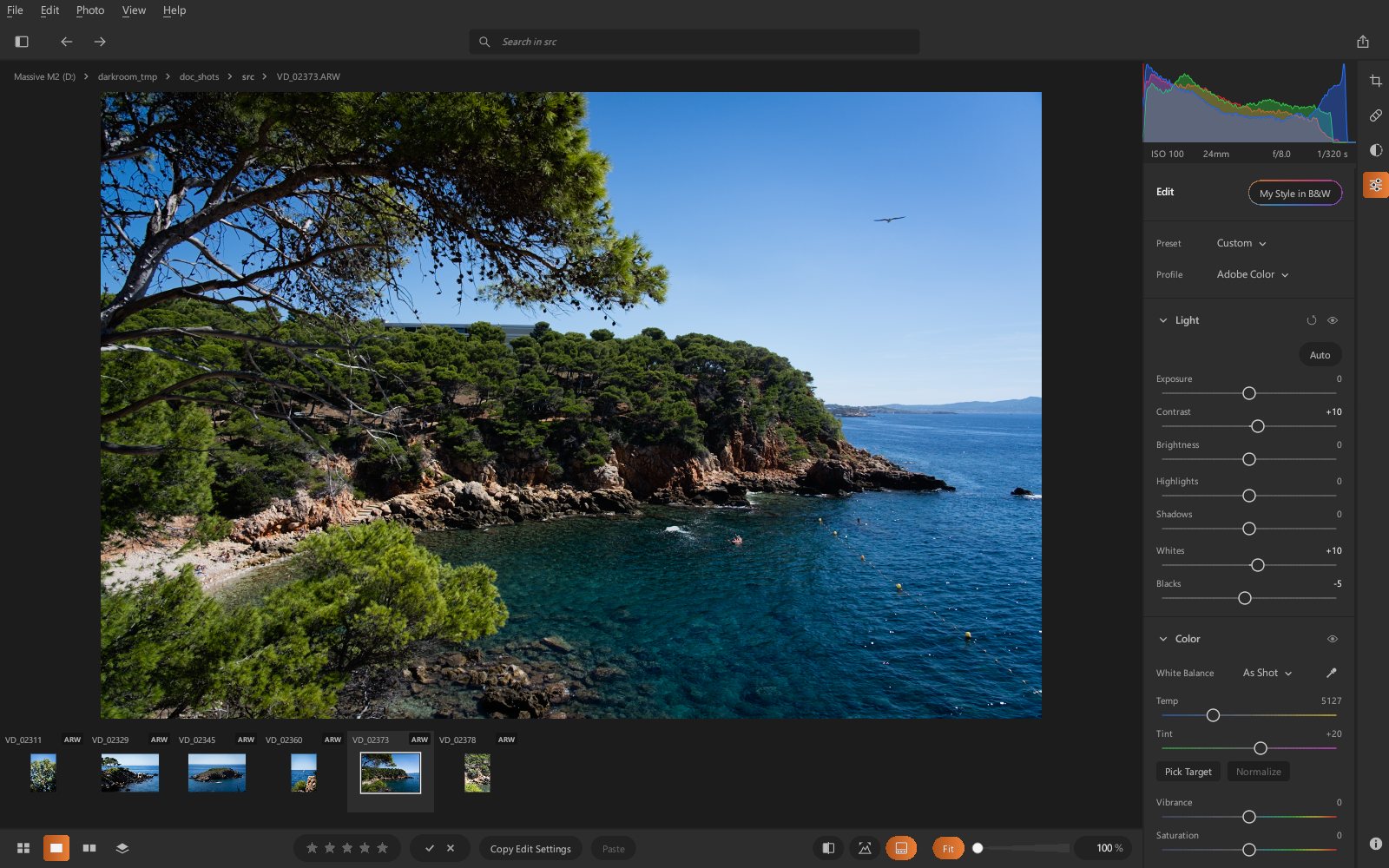
View › Appearance changes the look of the interface; your choice is remembered.
| Appearance | Style |
|---|---|
| Darkroom | dark neutral grays, the original appearance |
| Charcoal | darker neutral grays |
| Classic | section titles in capitals on a band, gray background around the photo |
| Studio | deep blacks, orange accent, floating panels with rounded corners, slightly larger interface |
| Neutral Gray | mid-gray background (18%) around the photo, for judging contrast and colors |
| Compact | smaller interface and narrow panels: more room for the photo (laptops) |
| Slate | medium grays, triangle sliders, blue accent |
| Graphite | dark grays, orange accent, one-line sliders, dense interface |
| Steel | dark grays, deep blue accent, one-line sliders, square switches |
| Pewter | mid gray, one-line sliders, on/off buttons |
Workspace
View › Workspace changes Darkroom's layout, shortcuts and wording; your choice is remembered and brings the appearance that goes with that workspace. Settings and the rendering of your photos stay the same from one workspace to another.
The Darkroom workspace, the default, is Darkroom's original interface, familiar to Adobe Lightroom users. The others, listed in the menu under For users of:, offer a layout, wording and shortcuts familiar to users of Adobe Camera Raw, Capture One, DxO PhotoLab and darktable, so you feel at home coming from them.
| Workspace | What changes |
|---|---|
| Darkroom | Darkroom's original interface |
| Camera Raw | panels in the order Camera Raw users know (Light, Color, Effects, Curve…), familiar wording (Temperature…), shortcuts (I White Balance Selector, S Color Sampler, B Remove, M Masking, P before / after, Ctrl+C / Ctrl+V copy / paste settings); Slate appearance |
| Capture One | tools on the left in tabs (Library, Shape, Style, Adjust, Refine, Metadata), browser in a column on the right, tools in the top bar; familiar tool names (Exposure, High Dynamic Range, Clarity and Structure, Sharpening…), shortcuts (Y before / after, Ctrl+E clipping warning, F7 new variant…); Graphite appearance (orange accent, one-line sliders) |
| DxO PhotoLab | histogram on the left, stacked palettes on the right (Light, Color, Detail, Geometry, Effects) with a search and family buttons, a square switch to turn each correction on or off; PhotoLibrary / Customize tabs; familiar wording (Selective Tone, Microcontrast, Fine Contrast, Color Rendering…), shortcuts (R crop, Ctrl+D before / after…); Steel appearance |
| darktable | modules in tabbed groups (active modules, base, tone, color, correct, effects) with a search, an on/off button on each module, lighttable / darkroom views; familiar module names (exposure, local contrast, color balance rgb…), shortcuts (L / D, R reject, F1 to F4 color labels, X compare, arrows next or previous photo…); Pewter appearance (mid gray) |
In every workspace, all of Darkroom's settings are there: those with no usual place in that workspace (lens blur…) are placed with their family. The tools described in Tools of each workspace are in every workspace too.
Language
View › Language: French or English. On first launch, Darkroom uses the system language: French if Windows (or Linux) is in French, English otherwise.
Undo
Ctrl+Z undoes, Ctrl+Y (or Ctrl+Shift+Z) redoes. A slider drag counts as a single step.
The History panel lists all the steps; a click goes back to any of them.