Masks
Masks apply adjustments to only part of the photo: darkening a sky, brightening a face, warming
a foreground… Press Shift+W, or click the Masking icon.
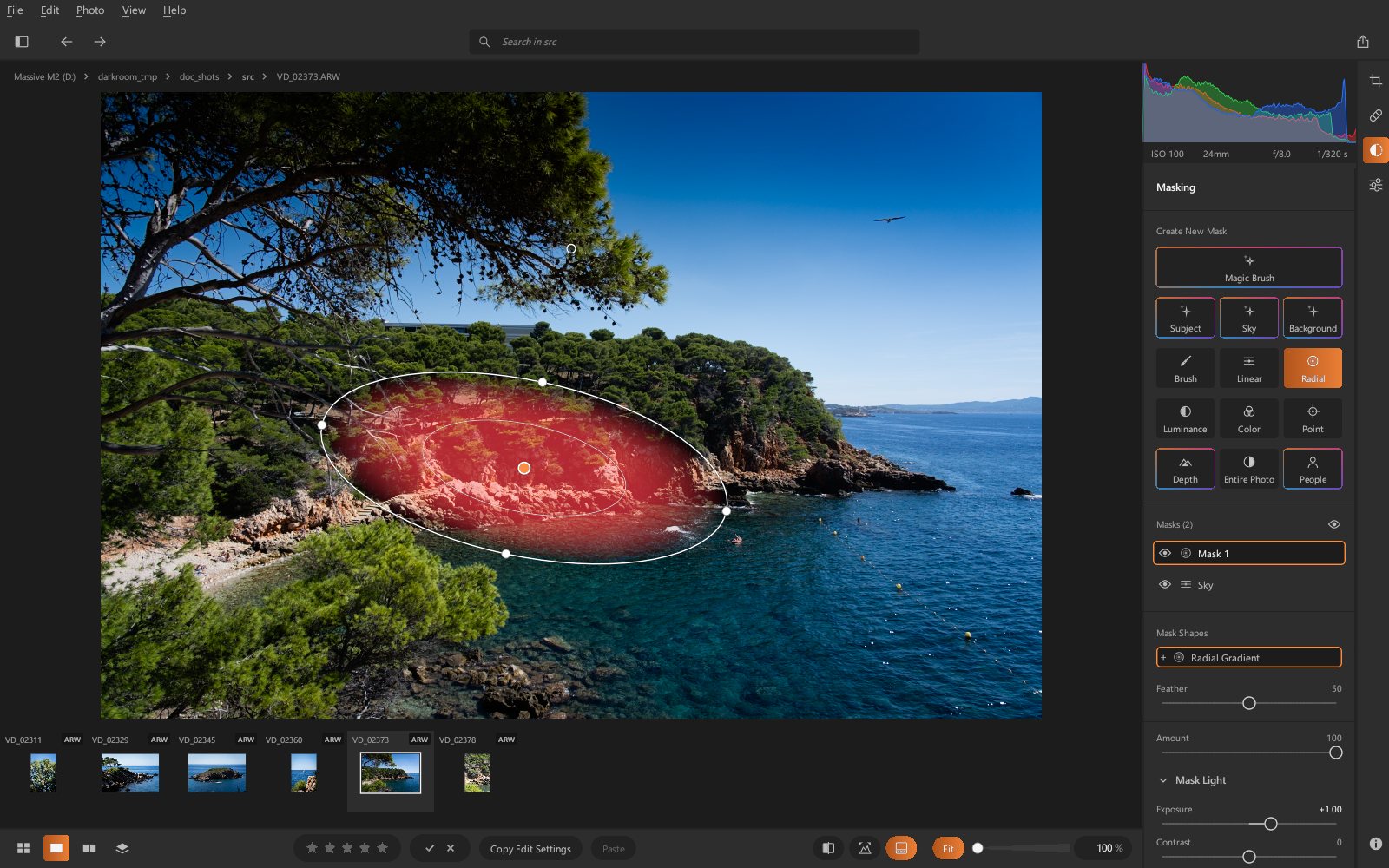
Create a mask
At the top are the Magic Brush and the Subject, Sky and Background selections (colored border: artificial intelligence), then the drawing tools and the ranges. These buttons always create a new mask; to add to an existing mask, see Add to a mask.
When masking opens, no tool is chosen: click the one you want. The button the selected mask comes from stays lit (orange background).
A banner, below the buttons and at the top of the photo, always tells you where your next
stroke goes: New Mask, Adding to "Mask 2", or Subtracting from "Mask 2" on a
Brush (inverted) shape. Esc cancels the selected tool.
| Button | Use |
|---|---|
| Magic Brush | paint over what you want to select: the selection snaps to the edge of the painted object |
| Subject | in one click, the subject of the photo: the people, the main object |
| Sky | in one click, the sky |
| Background | in one click, everything except the subject |
| Brush | paint the area to adjust, exactly as painted |
| Linear | gradient: drag on the photo from the full-effect side toward the no-effect side (sky, ground) |
| Radial | ellipse: drag to draw it; the effect is inside (or outside with Invert) |
| Luminance | everything within a lightness range (light tones, shadows…) |
| Color | everything of one color: then click that color in the photo |
| Point | control point: click the photo; within its radius, it adjusts colors close to the point's own |
| Depth | everything at a certain distance: the foreground, the far distance… (AI) |
| People | part of a person: face skin, eyes, lips, teeth, hair, clothes… (AI) |
| Entire Photo | the whole photo: its settings apply everywhere, scaled by the Amount |
Magic Brush
Roughly paint over a person, an object, the sky…: when you release, the selection snaps to the edge of what you painted, at the scale of your stroke:
- a stroke that covers a good part of a person (from head to waist) selects the whole person;
- a dab on an eye, the mouth, a beard, a shirt takes only that element: for a detail, set the brush to roughly its size;
- a dab on the sky takes the whole sky.
Painting over the selection extends it (adding a shadow to a person, for example); Alt
removes an area. An erased area can then be painted back in without trouble.
The first time on a photo, the AI analyzes it in one to two seconds; after that, each stroke snaps almost instantly. The plain Brush, on the other hand, paints exactly where it goes.
Object Edge (below the AI snap checkbox): width of the transition at the edge of the detected object, from 0 (sharp edge) to 100 (very gradual edge, for a sky or hair). It adjusts live on the selected mask, even long after the mask was created, whether it comes from the magic brush or from the Subject, Sky, Background buttons; after an addition with the magic brush, it adjusts the latest selection. The mask stays at full strength where it touches the edge of the photo. On a mask painted with the plain brush, or read back from a reopened photo, the slider is grayed out: there is no AI selection to soften.
Subject, Sky, Background
These three buttons select in one click, without painting anything:
- Subject: what stands out in the photo: all the people (a whole group, the passers-by in a street), otherwise the main object (a monument, an island). In a landscape with no clear subject, the AI may find nothing (No subject found in the photo) or pick a secondary element: the magic brush fixes that.
- Background: everything except that subject (the inverse of the Subject selection).
- Sky: the sky, based on the depth and colors of the photo, including clouds and gaps between branches; its edge follows the horizon line, rooftops, foliage. On a photo with no sky (concert hall, indoor shot), the AI says so: No sky found in the photo.
The sky is cut out pixel by pixel: every branch, every pine needle stands out against it, and
the sky glimpsed between the leaves is included. The edges are slightly softened: a strong adjustment leaves no visible line along the edge. The sky takes two to
three seconds, the subject a few seconds (longer on a modest computer). You can then refine
the selection with the magic brush, like any painted mask
(see Add to a mask): painting adds what is missing, on
the Background mask as on the Subject mask, and Alt removes what is extra.
Measured
On 350 public photos whose masks were traced by hand (the COCO dataset): the sky covers on average 79% of the right area (91% for the median photo), and a false sky appears on only 14% of the photos that have none. Subject finds 88% of people whose face is visible.
People
People finds the people in the photo from their faces, then selects part of one of them. A numbered frame surrounds each face found: click a frame, or a row of the list, to choose the person, check the parts you want, then Create mask.
| Part | |
|---|---|
| Whole person | the silhouette, clothes included |
| Face skin, Body skin | the skin, without the eyes, eyebrows or mouth |
| Eyebrows, Eye whites, Irises and pupils | from 478 points placed on the face; the iris stops at the eyelids |
| Lips, Teeth | the teeth: the light part of the inside of the mouth |
| Hair, Clothes |
Several checked parts make a single mask; the One mask per part switch, above the parts, creates one for each (to adjust the lips and the teeth separately, for example). The mask can then be completed with the magic brush, like any painted mask.
The search takes a few seconds, on the first click on People (about one second per person). Face parts need a face seen from the front or three-quarters: in profile, hidden or too small, the list says so (face not read) and those parts stay grayed out.
Limits
A person is only found if their face is visible: a person seen from behind, or a very
blurred face in the background, is not offered. What a person holds (a guitar, a bag) may
be taken with their clothes: remove it with the magic brush and Alt.
Luminance, color and depth ranges
A range is not drawn: it takes, anywhere in the photo, whatever has a certain lightness, a certain color, or is at a certain distance.
- Luminance Range: Minimum Lightness and Maximum Lightness (0: black, 100: white, as displayed), Feather on either side.
- Color Range: the eyedropper picks the color with a click on the photo (
Esccancels); Tolerance widens or narrows the range of shades included. Color is judged independently of lightness: the same hue is picked up in shade as in sunlight. - Control Point: Radius (or its handle on the photo) and Similarity: low, the point acts on its whole disc; high, only on colors and tones close to the point's own (a sky without the branches, skin without the clothes). Move the point: its color is picked again at its new place.
- Depth Range: Near and Far (0: the nearest point in the photo, 100: the farthest), Feather on either side. By default, the foreground. The AI estimates depth on any photo, in about a second on the first click. It is relative depth: it orders the planes from nearest to farthest, without distances in meters.
A range is mostly used to restrict another shape: a gradient over the sky intersected with a luminance range takes only the bright clouds; a brush stroke intersected with a color range takes only the green of the painted foliage.
Add to a mask, or remove from it
Select the mask in the list, then paint: what you paint is added to it (the forgotten arm, the
guitar). Alt erases for the duration of a stroke (whatever is extra). The same goes for the
Background mask. Only a Brush (inverted) shape, inverted by hand (right-click the shape,
or Invert in the mask's menu), does the opposite: what you paint is removed from it, and
the banner says Subtracting from.
The AI snap checkbox chooses the brush: checked, the stroke snaps to the edge of the painted object (magic brush); unchecked, it paints exactly where it goes. Only painted masks can be extended this way.
Shapes of a mask
Mask Shapes lists the shapes of the selected mask: + added, − subtracted, ∩
intersected. Clicking a shape selects it so you can adjust or move it; a right-click inverts
or deletes it.
Edit a mask
- Zoom in to paint precisely:
Zzooms in on the point under the pointer (and back out to the whole photo), like 100% at the bottom of the window; holdingSpacegives you the hand to move around the zoomed photo. - Move a gradient or an ellipse by dragging its center point; resize and rotate it with its handles.
-
Brush: AI snap checkbox (magic or normal brush) and its Object Edge, Size, Feather, Flow.
Alterases for the duration of a stroke; the mouse wheel,[/]or a right-click drag change the size.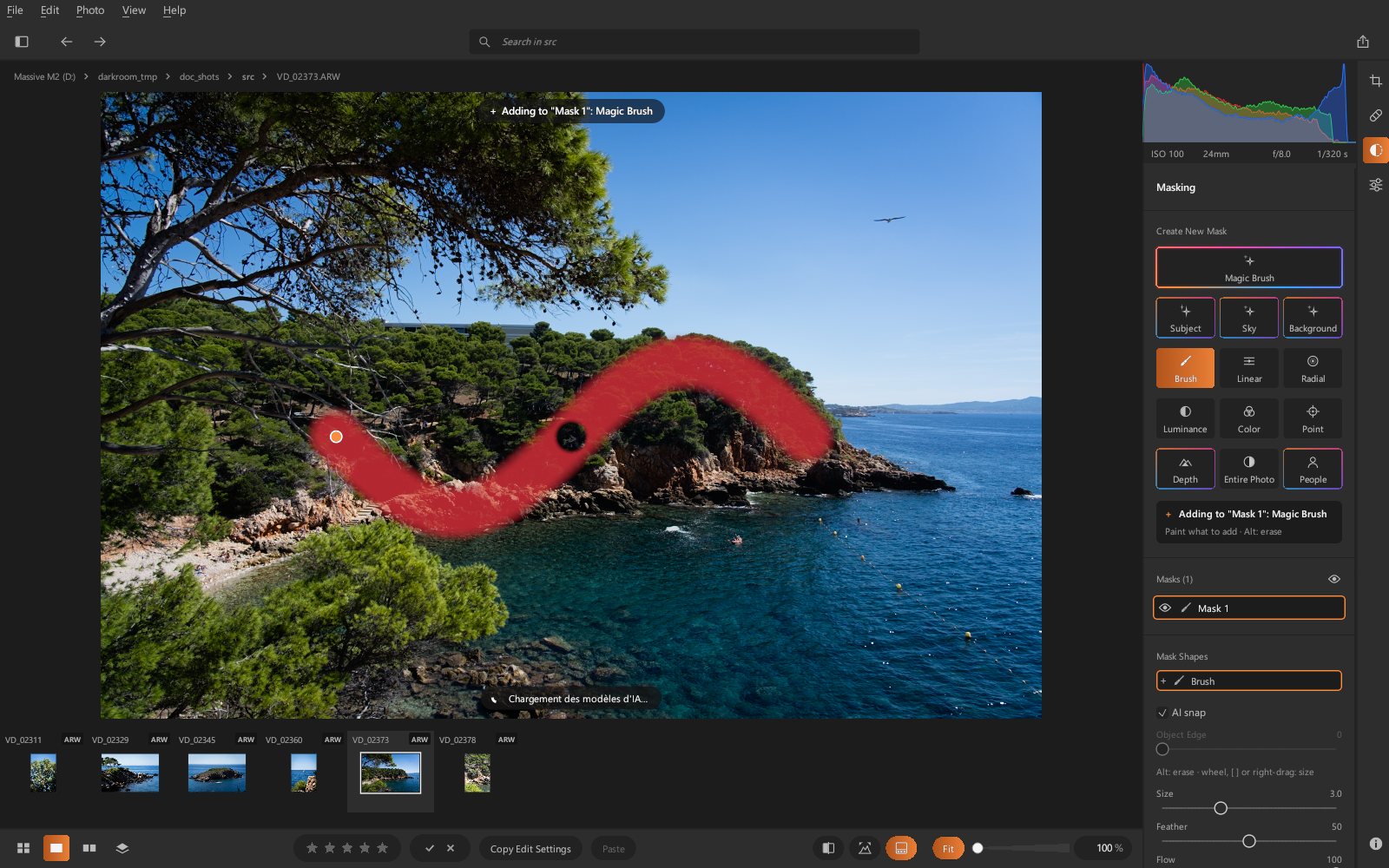
-
Feather: softens the edge of the mask.
- Overlay: the eye at the top of the mask list (or
O) shows the selected mask's area in red. It disappears while you adjust one of the mask's sliders (light, color, effects), so you can see the effect, then comes back.
Mask settings
Below the list, each mask has its own settings:
- Amount: the mask's opacity (at 50, its settings only apply halfway);
- Light: Exposure, Contrast, Highlights, Shadows, Whites, Blacks;
- Color: Temp, Tint, Vibrance, Saturation, Hue Shift (±45°);
- Effects: Texture, Clarity, Dehaze.
The mask's Vibrance works like the one in the Color section (it mainly saturates dull colors and spares skin tones), but only inside the mask, according to its strength at each point. Lightroom has no Vibrance in its masks: on a mask imported from Lightroom, it is set to 0.
The mask list
Each mask has an eye (hide its effect) and a menu (right-click): Rename (or
double-click), Duplicate, Invert, Move Up / Move Down, Delete
(Delete key). The Reset Settings button, below the settings, resets the mask's settings
to zero.
Lightroom masks
Masks created in Lightroom (gradients, ellipses, brushes, and AI masks such as
Subject, Sky, People…, as Lightroom computed them) are imported from the .xmp
files with their settings.