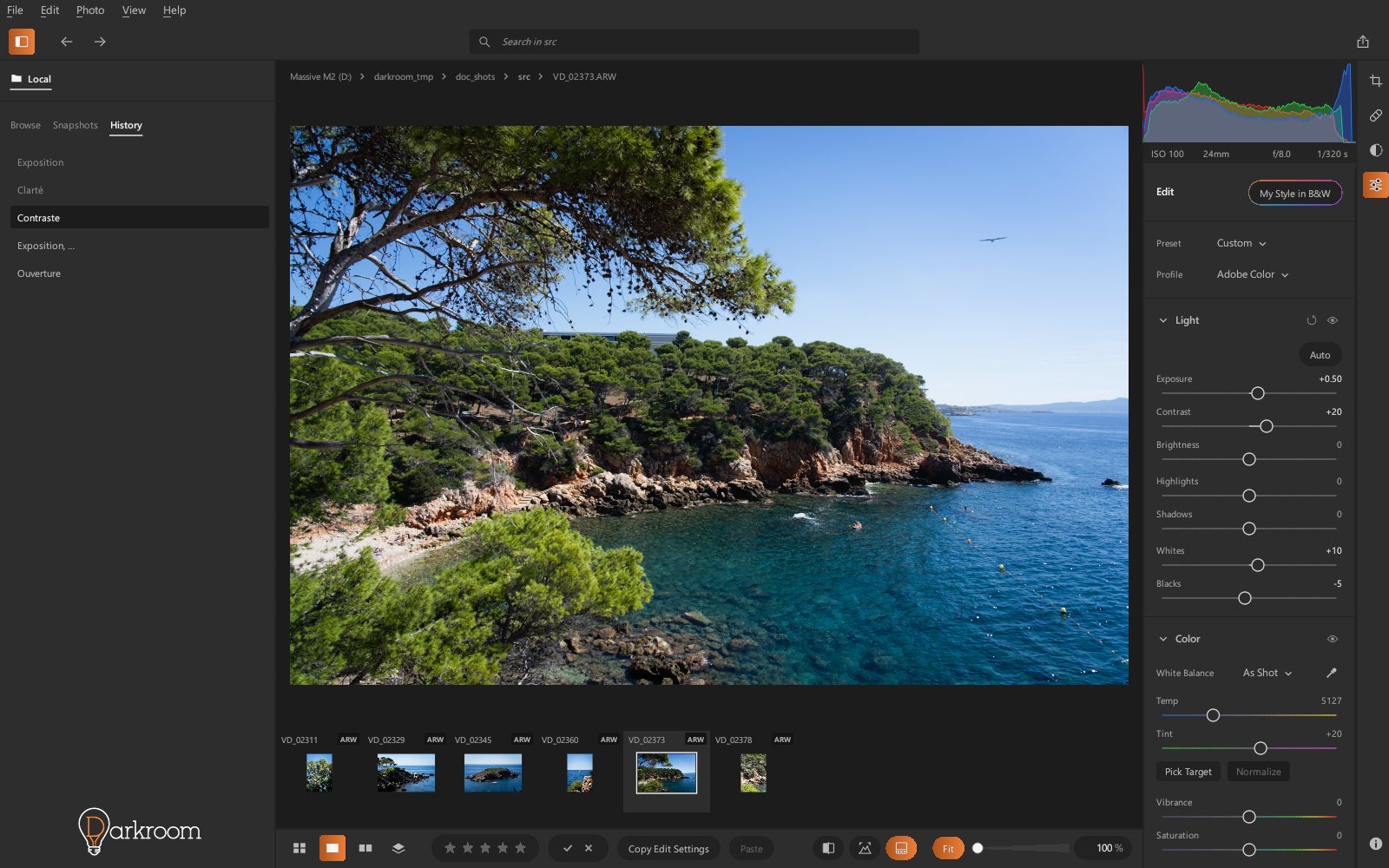
Presets, snapshots, history
Presets
The Preset list, at the top of the Edit panel, applies a set of settings in one click. As in Adobe Lightroom, a preset changes only the settings it contains: the rest of the photo's settings are kept.
- Amount: below the list, once a preset is applied, sets its strength from 0 to 200%. At 100%, the preset as is; at 0%, the photo as it was before; in between or beyond, each setting moves from its previous value toward the preset's (the profile, the vignette style and the color grading hues stay those of the preset). The slider disappears as soon as another setting is changed.
- Create Preset…: saves the settings of the displayed photo, with or without the white balance.
- Update "…": replaces the applied preset's settings with the photo's.
- Delete: the trash can at the end of one of your presets' row, on hover, or Delete "…" for the applied preset. Cancel, in the message that follows, restores it.
- Default: everything at 0, white balance as shot, Adobe Color profile.
The name shown is that of the preset matching the photo's settings, otherwise Default or Custom.
Film looks
At the bottom of the list, the Film Looks group gives the photo the look of a type of film. Hovering over a look previews it; a click applies it, and Amount doses it.
| Look | Appearance |
|---|---|
| Portrait Negative | soft color negative: warm skin, olive greens, moderate contrast |
| Consumer Negative | warm, vivid negative: bold yellows and reds, golden light |
| Vivid Slide | intense colors, deep blues and greens, dense blacks |
| Neutral Slide | clean, slightly cool colors, crisp contrast, very fine grain |
| Tungsten Cinema Film | teal shadows, warm lights, red halo around light sources |
| Expired Film | faded colors, washed-out blacks, magenta and yellow cast |
| Classic B&W | reportage black and white, strong contrast, rich grain |
| Soft B&W | nuanced grays, slightly lifted blacks, fine grain |
| B&W Red Filter | dark skies, clouds that stand out, light skin |
Each look sets three tools that you can change afterwards: a color table computed by Darkroom (the LUT tool, where it is also offered on its own), Grain and, for the cinema film, Glow of the Halation type. The photo's other settings (light, white balance, masks) are kept: adjust exposure and contrast before or after. The looks are inspired by families of film stock, without reproducing any brand's film.
Bring in your Lightroom presets
File › Import My Lightroom Presets converts all your user presets from Lightroom (the cloud version, those synced to the computer, and Adobe Lightroom Classic) and from Adobe Camera Raw. Run the import again after changing a preset in Lightroom: the Darkroom preset with the same name is replaced.
Presets are small text files in %APPDATA%\Darkroom\presets, easy to back up or copy to
another computer.
Snapshots
A snapshot stores a photo's current settings, so you can compare several versions or return to a step. In the left panel, Snapshots tab:
- New Snapshot;
- click: restore those settings; double-click: rename;
- right-click: Update with Current Settings, Rename, Delete.
History
The History tab lists every change to the photo since it was opened; a click goes back to
any of them. Ctrl+Z / Ctrl+Y step through the same list.