Retouch and layers
The Retouch screen picks up where developing leaves off, without leaving Darkroom or going through an intermediate file: the developed photo becomes the Background of a layered document.
To get there: the Retouch button (the layers icon, bottom left, next to the grid), the
View › Retouch menu or Ctrl+E (except in the workspace for users of Capture One, where
Ctrl+E shows the clipping warning). D goes back to Develop; the Library through
View › Grid or the grid button (in this screen, G is the Gradient tool).
The toolbar, on the left, shows all the tools in two columns; if the window is not tall
enough, it shows only one per group (the last one chosen, marked with a small triangle), the
others on right-click. The keys stay the same: the letter picks the
group's last tool again, Shift + the letter moves to the next one.
What is not there
The document stays in Darkroom's format (no PSD). Only photos can be linked as non-destructive layers (not another retouch document). No scripts; actions do not record brush strokes; only one perspective plane at a time.
The Background follows Develop
The Background is the full-resolution render of the photo with its settings. If you go back to Develop and change a setting, the Background is recomputed when you return; the layers above it are kept.
Layers
The Layers panel, on the right, lists the layers from top to bottom:
- click a layer: it becomes the active layer;
- eye: show or hide the layer;
- double-click the name: rename it (
Enterconfirms,Esccancels); - right-click a layer: Duplicate, Rename, Delete, Merge Down, Rasterize;
Deletedeletes the active layer when there is no selection (with a selection, it clears its pixels); - at the top, the blend mode and opacity of the active layer;
- at the bottom: new layer (
Ctrl+Shift+N), duplicate, layer mask, adjustment layer, move up, move down, delete.
Each row shows the layer thumbnail and, if it has one, its mask thumbnail.
The Background stays at the bottom and can't be deleted (padlock). Duplicating it makes an ordinary pixel layer, which you can then change without touching the photo. A new layer is transparent: the checkerboard shows what is not covered.
Blend modes
27 modes: Normal, Dissolve; Darken, Multiply, Color Burn, Linear Burn, Darker Color; Lighten, Screen, Color Dodge, Linear Dodge (Add), Lighter Color; Overlay, Soft Light, Hard Light, Vivid Light, Linear Light, Pin Light, Hard Mix; Difference, Exclusion, Subtract, Divide; Hue, Saturation, Color, Luminosity. They are computed on the colors as you see them (sRGB). The Background stays in Normal.
Layer masks
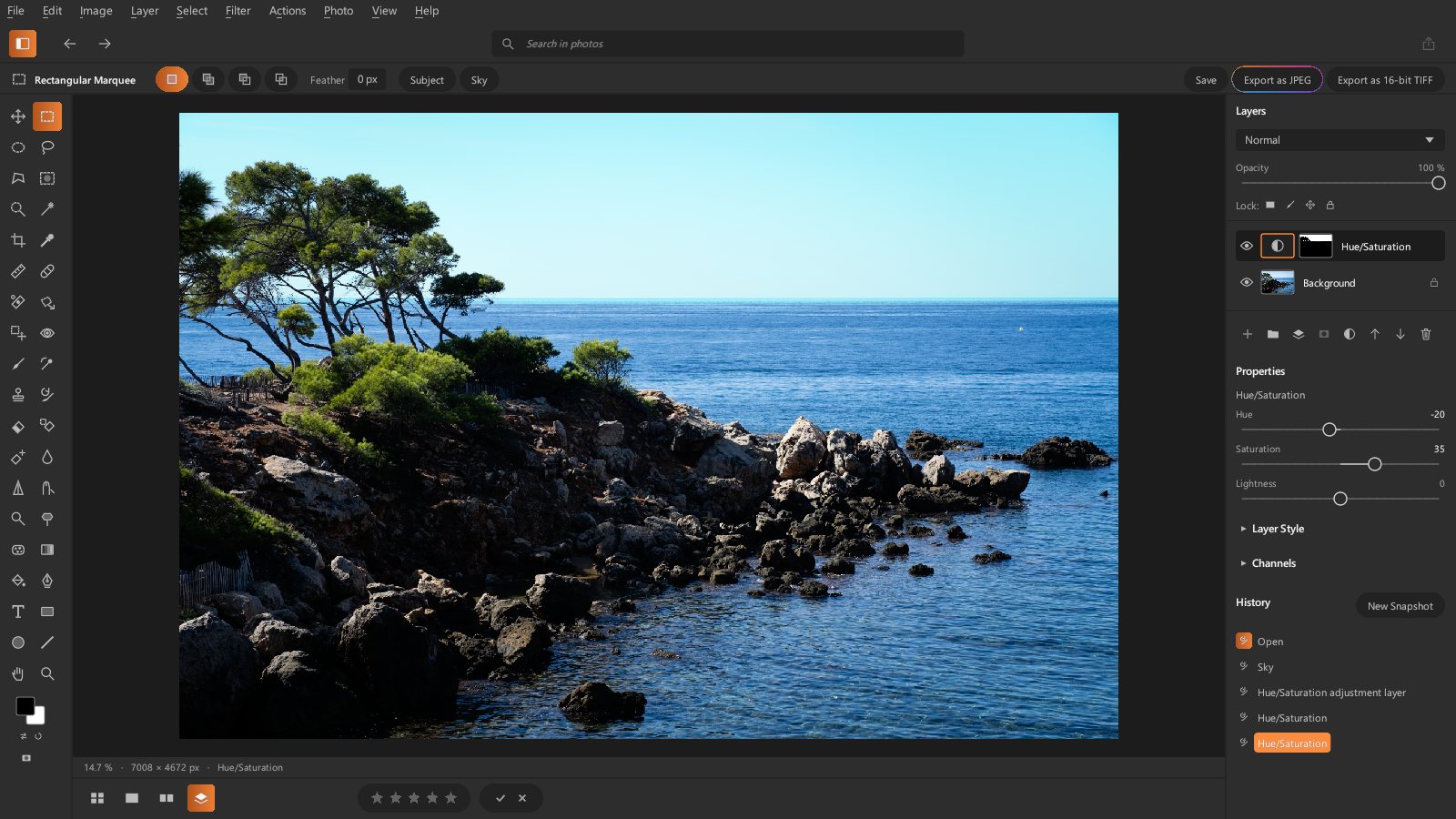
A layer mask hides part of the layer without erasing it: white, the layer shows; black, it is hidden; gray, it is partly transparent. The mask button (or Layer › Layer Mask › Add Layer Mask) creates one from the selection, or all white without a selection; Hide All creates it all black, Mask from Transparency moves the layer's transparency into a mask (its pixels become opaque).
- click the mask thumbnail: that's what you paint (its outline lights up). The Brush, Gradient and Paint Bucket put gray on it from their color (black: hide, white: show); the Eraser puts the background color;
- Shift+click the thumbnail: mask disabled (red cross), then enabled again;
- Alt+click the thumbnail: the mask shown alone, in gray (you can paint it that way), until the next Alt+click or a click on a layer; Ctrl+click: the mask as a selection;
- click the layer thumbnail: back to its pixels;
- in Properties: Invert (
Ctrl+I), Disable, Apply (the mask becomes the layer's transparency) and Delete.
Adjustment layers
An adjustment layer changes everything below it without touching the pixels: you can adjust,
mask, fade or delete it at any time. Brightness/Contrast, Levels, Exposure,
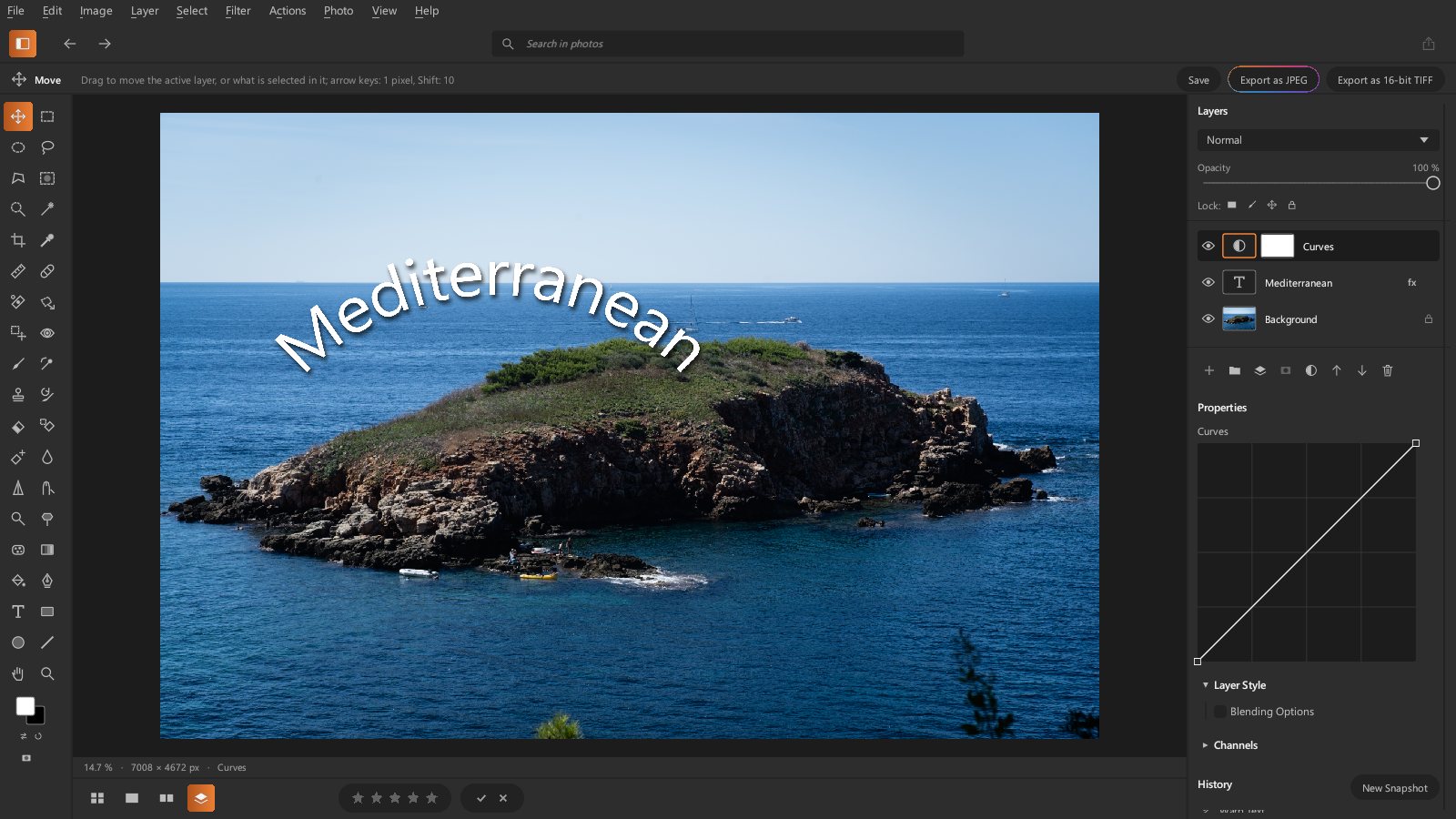
Curves (Ctrl+M), Vibrance, Hue/Saturation, Black & White, Invert,
Posterize, Threshold, Color Balance (shadows, midtones
and highlights, luminosity preserved), Color Filter, Channel Mixer, Color Table
(LUT) (a 3D .cube LUT from the LUT folder, the one of Develop's LUT tool; the Import a LUT…
button adds some), Gradient Map (from the foreground to the background color), Color
Family Correction (cyan, magenta, yellow or black added to one family: reds, yellows, greens, cyans,
blues, magentas, whites, neutrals or blacks, with the Relative or Absolute method),
Solid Color and Gradient (a fill layer from the foreground to the background color:
angle, scale, Linear or Radial) are added with the half-circle button or Layer › New Adjustment Layer. Its
sliders are in Properties. The new layer takes the selection as its mask; painting on an
adjustment layer paints its mask. Levels also has Ctrl+L.
Curves are set on their graph: drag a point to move it, click elsewhere to add one, pull it out of the box to remove it. The curve goes through every point and never overshoots between two (monotone interpolation).
Layer styles
In Properties, Layer Style adds effects to the layer (pixels, text or shape) that follow its shape and are recomputed when it changes: Drop Shadow (opacity, light angle, distance, size), Outer Glow (opacity, size), an outside Stroke (size) and Color Overlay (opacity). Clicking an effect's color square gives it the foreground color. The More Effects menu adds those that sit inside the layer: Inner Shadow, Inner Glow, Bevel & Emboss (depth, size, light angle and altitude, highlight and shadow amounts) and Gradient Overlay (two colors, angle, opacity). The fx badge marks layers that have a style. When the panel is taller than the window (a text and its style on a small screen), it scrolls.
The Blending Options (also for an adjustment layer) set the fill opacity: the layer's opacity without its effects (at 0%, a text keeps only its stroke and shadow, knocked out under it), and By luminance, this layer or underlying layer: the layer only shows where its tones, or those below, are between the given black and white, each with a transition (from the first value to the second) — to keep a sky only in the light tones, or let the shadows below show through.
Clipping masks
Layer › Create Clipping Mask (Alt+Ctrl+G) limits the active layer to what is visible of
the layer below it (its base layer): an adjustment, a texture or a color laid only inside a
text or a shape. The clipped layer is indented in the list, with an arrow to its base; the
same command releases it.
Several layers
Ctrl+click on a layer's name adds it to the chosen layers (or removes it), Shift+click
chooses all of them up to it. The chosen layers are grouped together (Ctrl+G, gathered
under the highest one), moved together with the Move tool, merged (Ctrl+E) or
deleted at once. A plain click chooses only that layer again.
Layer › Arrange brings the layer (or group) to the front (Ctrl+Shift+]),
forward (Ctrl+]), backward (Ctrl+[) or to the back (Ctrl+Shift+[, just above
the Background). Layer › Align lines the chosen layers up on their edges or centers (a
single layer: on the selection); Distribute spaces the centers of three or more layers
evenly.
Groups
Layer › Group Layers (Ctrl+G) puts the active layer (or the active group) in a new group;
New Group (Layer menu or the folder button under the list) creates an empty one. The
group's layers are indented under its header, which the triangle collapses or expands. The
group's eye, opacity and layer mask apply to all its layers; their blend modes act on everything
below (Pass Through mode).
A new layer goes into the active layer's group. Moving a layer up or down at the edge of its
group takes it out; against a neighbouring group, it goes in. The group moves (V) and
transforms (Ctrl+T) with all its layers, is duplicated or deleted as a whole; Ungroup
Layers (Ctrl+Shift+G) removes the group and keeps its layers, and Merge Group
(Ctrl+E) combines it into one pixel layer.
Locks
Above the list, Lock: transparent pixels (you only paint over what is already there), image pixels (no more painting or filters), position (no more moving or transforming), or all. A padlock marks a locked layer.
Composites: another photo, replacing the sky
Layer › New Layer from a Photo… places another photo (RAW, JPEG, PNG, TIFF) in a new layer,
developed with its own settings and fitted in the document: Free Transform (Ctrl+T), a layer
mask and blend modes turn it into a composite. The layer is a linked non-destructive layer:
its transforms lose nothing, and Layer › Non-Destructive Layers › Update from Development
develops the photo again with its current settings (changed meanwhile in Develop) while keeping
its place, its mask and its non-destructive filters.
Edit › Replace Sky… puts another photo's sky in place of the photo's: the AI finds the sky (like the Sky selection), the new sky covers the document in a layer above, masked by that sky. Touch up the mask with the brush, move or transform the layer to frame the new sky.
Merge
Layer › Merge Down (Ctrl+E) combines the active layer with the pixel layer below it,
with the active layer's mode, opacity and mask. Merge Visible (Ctrl+Shift+E) combines the
layers shown above the Background into one pixel layer; Merge Visible to New Layer
(Ctrl+Alt+Shift+E) combines them, Background included, in a new layer at the top, the
layers staying; Flatten Image combines all the layers into one (hidden layers are
discarded). The Background itself stays linked to the development. Layer › Invert
(Ctrl+I) inverts the colors of the active layer, or its mask when the mask is chosen.
Selections
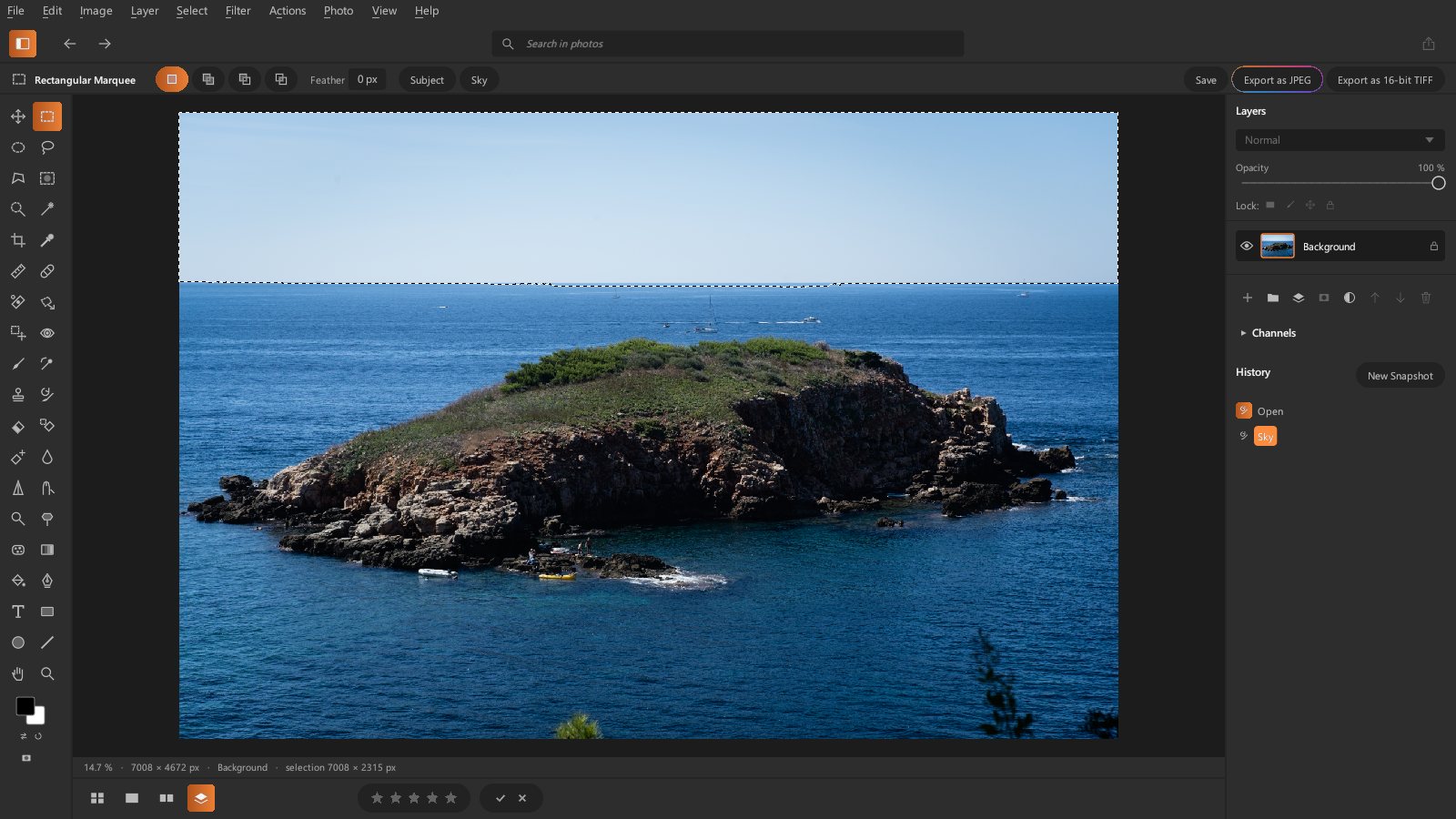
The selection tools, on the left:
| Tool | Key | Gesture |
|---|---|---|
| Rectangular Marquee | M |
drag from one corner to the other |
| Elliptical Marquee | Shift+M |
drag: the ellipse inscribed in the rectangle |
| Lasso | L |
draw the outline freehand, it closes when you release |
| Polygonal Lasso | Shift+L |
one click per corner; Enter, double-click or click the first corner to close, Backspace removes the last one, Esc cancels |
| Object Select | W |
a box around an object: the AI cuts it out |
| Selection Brush | Shift+W |
paint over the object: the AI extends the selection to the whole object; each stroke adds (Alt: removes) |
| Magic Wand | Shift+W |
one click: the pixels of a similar color |
M, L and W bring back the last tool chosen of their group; Shift with the key moves to
the next one. Object Select and the Selection Brush have the AI (the Magic Brush model,
installed with the AI models) cut out only the area around the object, for a precise edge
even on a large photo.
The selection outline is shown as marching ants. Each new shape replaces the selection,
or is combined with it according to the buttons of the options bar or the key held at the
start of the gesture: add (Shift), subtract (Alt), intersect (Shift+Alt).
A click without dragging removes the selection; dragging inside the selection moves its
outline.
In the options bar:
- Feather: edge faded over this many pixels, for the next shapes;
- Anti-alias: edges softened by one pixel (ellipse, lassos, wand);
- Tolerance (wand): accepted color difference, from 0 to 255; Contiguous: only the area connected to the click, otherwise every pixel of that color; Sample All Layers: the colors of the whole image rather than those of the active layer;
- Subject and Sky: the selection made by the AI, like the masks of the same name in Develop (if the AI models are installed).
The Select menu offers Select All (Ctrl+A), Deselect
(Ctrl+D), Reselect (Ctrl+Shift+D), Inverse (Ctrl+Shift+I), Subject,
Sky, Select by Color…, then the modifications: Feather… (Shift+F6), Expand…,
Contract…, Smooth… (round corners and fill small gaps), Border… (a band around the
edge) and Refine Outline… (the edge snapped to the image's details, for hair, foliage).
Luminosity Selection (Ctrl+Alt+2) selects the composite image in proportion to its
brightness (white fully, black not at all): the starting point of luminosity masks
(intersected, then intersected again: ever lighter tones; inverted: the shadows); Load a
Channel does the same with red, green or blue. View › Channel (Ctrl+3, Ctrl+4,
Ctrl+5) shows a single channel in gray, Ctrl+2 goes back to RGB.
Transform Selection puts the Free Transform box around the selection's outline: it moves, scales, rotates or distorts without touching the pixels. Save Selection… keeps it under a name, with the document; Load Selection… brings it back (inverted or not), combined with the current selection by the selection tools' mode.
The Channels panel (under the layers) lists RGB, red, green, blue and the alpha
channels — the saved selections. A click on an alpha channel shows it alone, in gray (white:
selected, black: not): the brush paints it (white adds, black removes, gray half-selects),
the eraser paints the background color into it; Ctrl+click or Load makes it the
selection; RGB goes back to the image. New Channel creates a black one, Save keeps the
current selection in one, Delete removes the shown channel; everything counts in the
history. Filters also apply to the shown channel (a Gaussian blur softens its edge, Median
smooths it, Levels hardens it…), in gray, with their preview.
Select by Color: click the color to select in the image (Shift+click adds more); the
Tolerance widens or narrows what is taken, the marching ants follow; OK keeps it.
Refine Selection… (Alt+Ctrl+R) reworks a selection (the subject, one made with the
Selection Brush) while showing it on the image — as Overlay (red where nothing is selected), On Black, On
White or Black & White: the Radius makes the edge follow the image's details (hair,
foliage) over that width, then Smooth, Feather, Contrast (the edge hardened) and
Shift Edge (tightened or widened). Output To: the selection, the active layer's mask, a
new layer of what is selected or a new layer with a layer mask; for a layer, Decontaminate
Colors replaces on the edge the background's color with the nearby subject's (the green fringe
of a portrait shot in front of foliage).
Focus Area… selects what is sharp in the image (the subject on a blurred background, a macro): the In-Focus Range takes the slightly less sharp areas more or less widely. Grow extends to the neighboring pixels that have the selection's colors, step by step; Similar takes those colors in the whole image; both follow the Magic Wand's Tolerance.
Quick Mask (Q, the button under the colors or the Select menu): the selection shows in
50% red where nothing is selected, and is painted with the brush or the eraser (black removes
from the selection, white adds to it, grays dose it); Q goes back to the marching ants with
the painted selection. Without a selection, nothing is red to start with.
Ctrl+click on a layer's thumbnail selects from its transparency (a group: its layers
together); with Shift the selection adds up, with Alt it is subtracted, with both it
intersects.
Move, copy, clear
- Move (
V): dragging moves the active layer, or only what is selected in it; the arrow keys nudge it by one pixel (Shift: ten). With a selection tool, the arrow keys move the selection outline. - Edit › Layer via Copy (
Ctrl+J): what is selected in the active layer (without a selection: the whole layer) into a new layer above. Layer via Cut (Ctrl+Shift+J) also removes it from the original layer. - Edit › Clear (
Del): makes what is selected in the active layer transparent; without a selection, deletes the layer. - Edit › Copy (
Ctrl+C), Cut (Ctrl+X), Copy Merged (Shift+Ctrl+C, the composite image) keep what is selected; Paste (Ctrl+V) puts it in a new layer, in its place (from another photo: in the center), Paste Into (Alt+Shift+Ctrl+V) masks it with the current selection. The clipboard is Darkroom's: it goes from one photo to another, not to other software.
The Background is locked: to change its pixels, first copy it into a layer
(Ctrl+J).
Free Transform
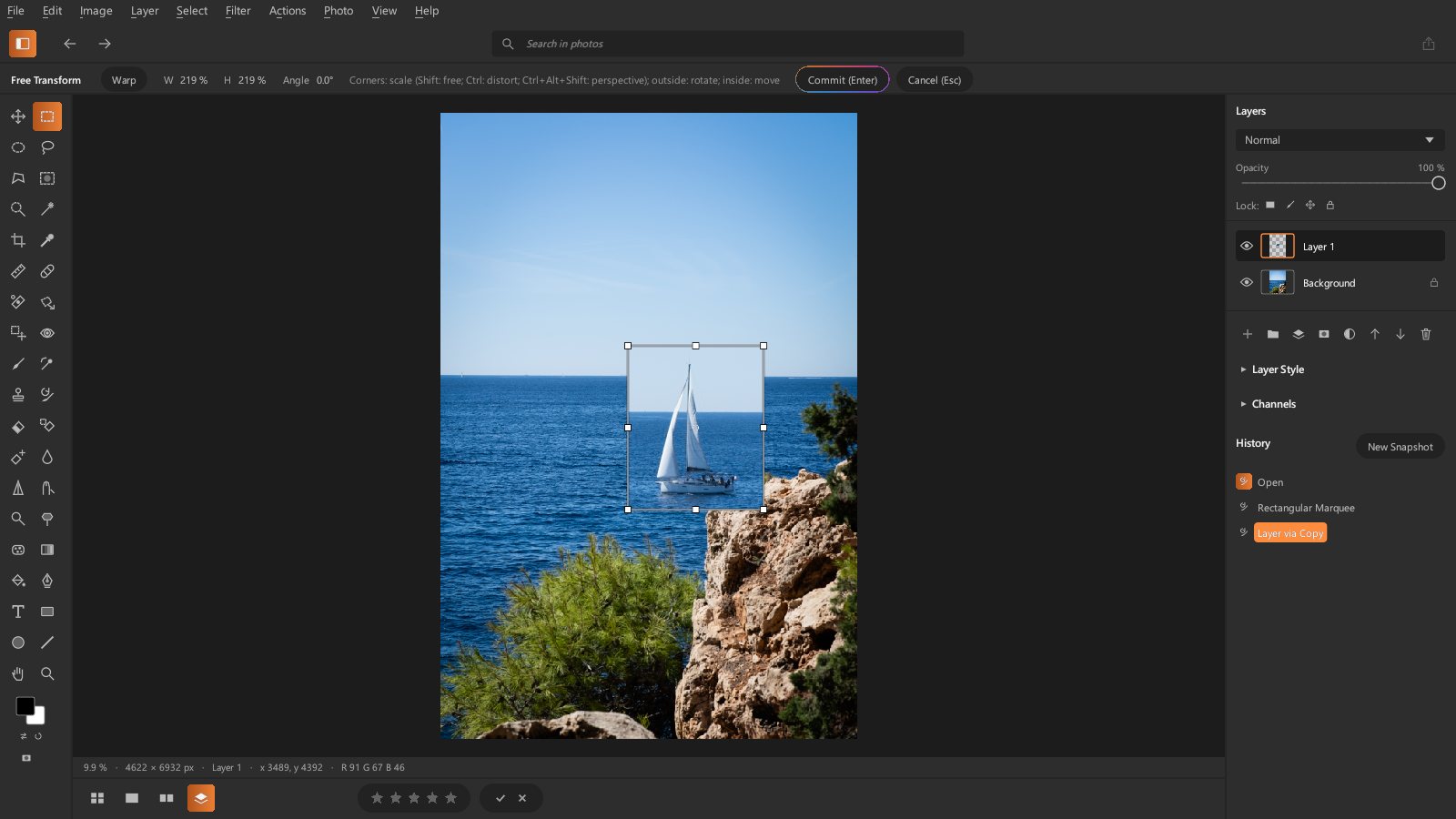
Edit › Free Transform (Ctrl+T) puts a box with handles around the active layer (or what
is selected in it):
- a corner: scale, keeping proportions (
Shift: free), the opposite corner stays put; - the middle of a side: one direction only;
- drag outside the box: rotate around the center (
Shift: 15° steps); - drag inside the box: move;
Ctrl+ a corner: distort, only that corner moves (the box becomes any quadrilateral);Ctrl+Alt+Shift+ a corner: perspective, the neighbouring corner on the same side moves the mirrored way.
Once the box is distorted, the sides, rotation and move act on its four corners.
The Warp button of the options bar puts a 4 × 4 grid of points on the box: the corners are on the image, the others bend it like a curve's handles; dragging inside moves the whole grid. What the warp uncovers becomes transparent; the masks and the selection follow.
Edit › Pin Warp puts pins on the active layer (or group): a click sets one,
dragging a pin warps the layer around it while the others hold it (an arm that bends, a branch
that curves, without stretching the rest), Alt+click removes one; Enter applies, Esc
cancels.
Edit › Plane Perspective straightens or changes the viewpoint of a part of the image, in two
steps. In Layout (L), put planes on the surfaces that are flat in the scene (a
facade, a table top): dragging draws a rectangle, four clicks set a quadrilateral, dragging a
corner fits it to the perspective; a corner dropped near another snaps to it, so the two
facades of a building seen from a corner share their edge; Alt+click inside a plane removes
it. In Warp (W), dragging a corner carries the image along: each plane follows its
perspective, shared edges stay joined and the rest of the image smoothly follows the nearest
planes. Straighten verticals (V) makes the nearly vertical edges (within 20°) vertical,
Level horizontals (H) makes the nearly horizontal edges horizontal. Going back to the
layout forgets the warp. Enter applies to the active layer (or group); on the Background,
the warp goes into a copy above it; a non-destructive layer is refused. Esc cancels.
Edit › Transform turns the active layer (or the group, or what is selected in it) around the center of its content: Rotate 180°, Rotate 90° Clockwise or Counter Clockwise, Flip Horizontal or Vertical, pixel-exact.
The options bar shows the width, height and angle. Enter, a double-click or Commit
apply the transform (the pixels are resampled only once); Esc or Cancel drop it. The
selection follows what is transformed; without a selection, the layer mask follows.
Paint and retouch
| Tool | Key | Gesture |
|---|---|---|
| Brush | B |
paint with the foreground color |
| Eraser | E |
make the active layer transparent |
| Color Replacement | Shift+B |
with the brush, the color picked at the start of the stroke (and what is close to it, Tolerance) takes the foreground's hue and saturation, its luminosity kept (Color mode) |
| Backdrop Eraser | Shift+E |
with the brush, only erases the color picked at the start of the stroke and what is close to it (Tolerance): a plain background around a subject; on the Background, a copy is erased and the Background hidden |
| Color Eraser | Shift+E |
click: the area of similar color (tolerance, contiguous) becomes transparent; on the Background, a copy is erased and the Background hidden |
| Clone Brush | S |
Alt+click the source, then paint: the source is copied under the brush |
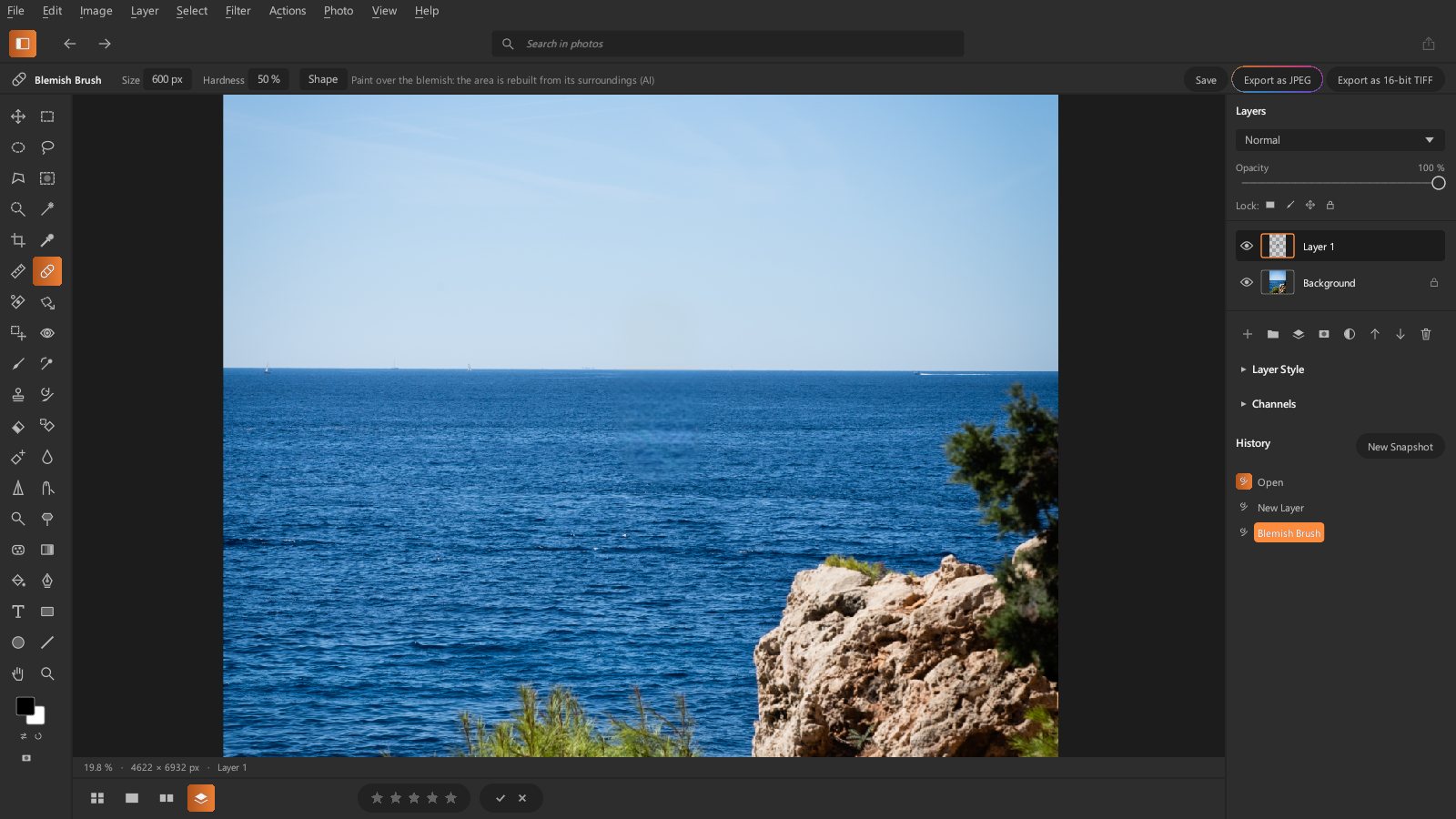
| Blemish Brush | J |
paint over the blemish: when you release, the area is rebuilt from its surroundings (AI) |
| Gradient | G |
drag: from the foreground to the background color, linear or radial |
| Paint Bucket | Shift+G |
one click: the area of similar color filled with the foreground color |
| Eyedropper | I |
one click: the foreground color taken from the image (Alt+click with the Brush, Gradient or Paint Bucket); Sample: the point or the average of a square (3 × 3 to 31 × 31) |
| Ruler | Shift+I |
drag: the length and angle of a line (Shift: by 45°); Straighten Layer rotates it so the line becomes horizontal (or vertical) |
Settings in the options bar: brush Size (also [ and ]), edge Hardness (Shift+[ and
Shift+]), Opacity (maximum coverage of a stroke) and Flow (coverage laid down at each
pass, which builds up); the Shape menu sets the tip: dab Spacing (as a % of the
diameter), Angle and Roundness (a flat, elliptical tip, for calligraphy or a stretched
shadow); Round tip goes back to the round brush. Under Tip, the menu offers the
Round tip or a defined one: Edit › Define Brush Preset keeps the selected rectangle of
the image, in gray (2500 pixels per side at most; dark paints, light and transparent do not),
in the configuration folder (formes subfolder), from one session to the next.
The tip is then laid down as prints along the stroke: Size sets its longest side, Angle
turns it, Roundness flattens it, Spacing spreads the prints, opacity and flow work as
with the round tip (hardness has no effect). It serves every painted tool (brush, eraser, Clone
Brush, healing brushes, masks…). Brush presets: Save this brush keeps the size,
hardness, opacity, flow, spacing, angle, roundness and tip, under the typed name (otherwise
“Brush 1”, “Brush 2”…), in the pinceaux_retouche.txt file of the configuration folder; a click
on a brush of the list brings it back, Delete this brush removes the chosen one. The circle
under the pointer shows the brush size (the frame of the print with a tip); with the Clone
Brush, a cross shows the source. The offset between the source and the brush is kept from one
stroke to the next until the next Alt+click. The Clone
Brush and the Blemish Brush use the whole image (All layers): they work well in an
empty layer above the photo.
The retouching tools are painted the same way:
| Tool | Key | Effect |
|---|---|---|
| Dodge / Burn | O, Shift+O |
lighten / darken the shadows, midtones or highlights, by the exposure |
| Sponge | Shift+O |
saturate or desaturate (flow) |
| Blur Tool / Sharpen | R, Shift+R |
soften / sharpen under the brush (strength) |
| Smudge | Shift+R |
smear the image along the stroke (strength) |
| Healing Brush | Shift+J |
Alt+click the source, then paint: the source's texture, in the tones of the spot being healed (skin, a wall) |
| Move and Reconstruct | Shift+J |
circle an object, then drag it: it is placed where you drop it, blended into its new surroundings, and its original spot is filled by the AI (like the AI Reconstruction fill); in Extend mode, it is copied without filling |
| Red Eye | Shift+J |
click in the middle of the pupil: the red area around it (grown from the click) takes the level of green and blue, darkened by the Darken Amount |
| Patch | Shift+J |
circle the area to fix (like the lasso), then drag it onto a clean area: that one replaces it, blended into the surroundings (the tone difference at the edge is smoothly interpolated inwards) |
| Restore Brush | Y |
paint the image back as it was at a History step: the icon left of each step chooses the source (the opening by default) |
A selection limits all these tools. The foreground and background colors are at the bottom of
the tool column: a click opens the color picker, X swaps them, the button next to it resets
black and white.
Painting on the Background creates a layer above it: the developed photo stays intact, and the retouch stays separate, to hide or fade. The Eraser does not touch the Background.
The Blemish Brush needs the AI models (see Artificial intelligence). It works best on small or medium areas (dust, wires, distracting objects): on a very large area, the rebuilt part loses detail.
Pen
The Pen (P) draws a precise path, for a clean selection of an object with smooth edges
(a product, a car):
- a click sets a corner point; dragging sets a smooth point and pulls its handles (the curve follows); a click on the first point closes the path;
Ctrl+dragmoves a point or a handle;Deleteremoves the last point;Escends the path (the next click starts another one).
In the options bar, Selection (Ctrl+Enter) turns the path into a selection (with the
selection tools' mode and feather), Fill Path fills it with the foreground color,
Stroke Path paints its line with the brush (brush size, hardness and opacity); on the
Background, in a new layer. Delete Path removes it. The path stays shown when you change
tools; it is not saved with the document.
Text and shapes
Text and shapes are vector layers: they keep their settings, which you can change at any time in Properties, and stay sharp.
- Horizontal Type (
T): a click creates a text layer (foreground color); type the text in Properties, with the font (the system's fonts), the size (in document pixels), the tracking (the space between letters, in thousandths of the size), the leading (as a % of the size, 120% by default), the alignment and the color. Clicking an existing text picks it up again. Warp bends the text without freezing it (it stays editable): Arc, Arc Lower, Arc Upper, Arch, Bulge, Flag or Rise, with a Bend from −100 to 100% (negative: the other way). With a Pen path (P), On Path puts the text on it: the letters follow the curve, the baseline on the path (Left, Center, Right: at the start, middle, end); Detach from Path makes it straight again. - Rectangle, Ellipse, Line (
U,Shift+Ucycles through them): drag to draw (Shift: square, circle, 45° line). Fill in the foreground color, stroke in the background color, weight and corner radius in the options bar, then in Properties. - The Move tool moves them without losing anything. To paint, filter or transform them, Layer › Rasterize turns them into a pixel layer.
Filters
The Filter menu applies a filter to the active layer, to its mask if it is chosen, or to what is selected:
| Family | Filters |
|---|---|
| Distort | Lens Correction (for a layer; the development already corrects raw files: distortion — positive, barrel corrected, the edges come in; negative, pincushion —, red/cyan and blue/yellow fringes — red or blue enlarged by a few tenths of a pixel at the corner —, vignette and its midpoint; what leaves the image leaves transparency), Twirl, Pinch, Spherize (in the inscribed ellipse), Polar Coordinates (either way), Ripple |
| Blur | Gaussian Blur, Motion Blur, Radial Blur (spin or zoom around the center), Edge-Preserving Blur (smooths flat areas) |
| Creative Blurs | Point Blur (pins on the image, see below), Elliptical Blur (sharp inside an ellipse — center, width, height, angle —, more and more blurred past the transition), Tilt-Shift (sharp in a band, blurred above and below: the miniature effect), Rotational Blur (a rotation blur inside an ellipse — center, width, height, angle, blur angle —, fading toward its edge; nothing moves outside); the ellipse or the band are drawn on the image while adjusting |
| Sharpen | Amount, radius, threshold sharpening (the "unsharp mask"), Advanced Sharpen (removes a Gaussian blur of the given radius by deconvolution — finer than the unsharp mask, without strong halos —, noise reduction leaves out the smallest differences) |
| Noise | Add Noise (monochromatic or in color), Dust and Scratches (the median where a pixel differs from it more than the threshold), Median |
| Pixelate | Crystallize, Color Halftone, Mosaic |
| Stylize | Emboss, Find Edges, Solarize |
| Render | Clouds, between the foreground and background colors; Lens Flare (a bright core, a glow, rays and colored reflections lined up toward the image center; center, brightness, three lenses — 50-300 mm, 35 mm, 105 mm —, added in Screen mode); Lighting Effects (a spotlight: elliptical pool — center, direction, cone —, intensity, ambient light, color warmth; the image multiplied by the light); the flare center and the pool are drawn on the image while adjusting |
| Other | Offset (what goes out comes back on the other side), Maximum, Minimum, High Pass (set it to Overlay mode to sharpen) |
Layer › Non-Destructive Layers › Convert to Non-Destructive Layer keeps the layer's original pixels: its transforms (scale, rotation, distort, perspective, flips, moves, canvas size) are always recomputed from the original, with no loss from one time to the next — scaling down then up gives back the intact image — and its filters are non-destructive (see below). Its pixels cannot be painted (its mask can): Rasterize freezes it into an ordinary layer. The ◆ badge marks it in the list.
Filter › Convert for Non-Destructive Filters prepares a layer: each filter applied afterwards (and each Image › Adjustments adjustment) is added to the Non-Destructive Filters list in Properties, the layer's pixels staying intact. A filter is turned on or off there (checkbox), edited (click its name: its window comes back with its settings) or removed; the filters replay in order at each change of the layer (the brush paints under them). Layer › Rasterize freezes the result. They do not follow the selection.
Image › Adjustments applies directly to the active layer's pixels (or what is selected in
it) the adjustment layers' adjustments — Brightness/Contrast, Levels, Exposure, Vibrance,
Hue/Saturation, Black & White, Invert, Posterize, Threshold, Color Balance, Color Filter, Channel
Mixer — as well as Shadows and Highlights (lighten the shadows, darken the highlights from the
neighbourhood's brightness), Desaturate (Shift+Ctrl+U) and Equalize (the levels spread
over the whole range), in the same window as the filters. To keep the adjustment editable,
prefer an adjustment layer.
Image › Auto Tone (Shift+Ctrl+L) spreads each channel over the whole range (0.1% of the
pixels clipped on each side), Auto Contrast (Alt+Shift+Ctrl+L) the three together (colors
kept), Auto Color (Shift+Ctrl+B) does the auto tone then brings the midtones' mean back to
gray (a color cast removed). On the Background, the result goes into a new layer.
Layer › Matting cleans the edge of a cut-out layer: Defringe (over the given width) gives the partly transparent pixels the color of their opaque neighbors, Remove Black or White Matte removes the background the subject was cut out on.
Image › Adjustments › Color Matching… gives the active layer the tones and colors of another layer (the Source): their mean and spread in lightness and color — to match a photo placed in a composite to the Background. Luminance and Color Intensity dose the result (100%: the exact match), Fade goes back toward the original; Neutralize removes the layer's color cast instead (a tinted gray becomes gray again). In the selection if there is one.
The filter window has its settings and a Preview, recomputed a moment after the last
change. Applied to the Background, the filter goes into a new layer: the developed photo stays
intact. Filter › Last Filter (Ctrl+Alt+F) reopens the last filter applied.
Reshape
Filter › Reshape… (Shift+Ctrl+X) warps the active layer with a brush, right on the image:
- Push (
W): pushes the image along the gesture; - Reconstruct (
R): gradually brings it back to the original; - Pucker (
S) and Bloat (B): pull toward the center of the brush or swell from it, as long as you press.
Size (also [ and ]) and Pressure in the options bar; Restore All clears the
warps. Enter or OK apply, Esc or Cancel drop them; on the Background, the result
goes into a new layer.
Seam Scale
Edit › Seam Scale… changes the width and height of the active layer's content (from 10 to 200%) by removing, or doubling, the seams poorest in detail — paths from one edge to the other through the sky, a wall, a plain background — rather than squashing the whole image: people and objects keep their proportions. Protect picks an alpha channel (Channels panel) whose selection is spared. The result is centered where the old content was; on the Background, it goes into a new layer. To widen a photo: Canvas Size first, then stretch it to the edges.
Align and blend layers (focus stacking)
For a handheld series, or a focus series (macro, a landscape sharp from the foreground to
infinity): put each photo in a layer (Layer › New Layer from a Photo), choose the layers
(Ctrl+click in the Layers panel, the Background included if any), then:
- Edit › Align Layers by Content registers each one on the lowest of them, from their common points (the panorama stitching corners, a homography robust to wrong points): shift, rotation, scale (focus breathing) and perspective. A non-destructive layer is registered without loss.
- Edit › Seamless Layer Blend takes each place from the sharpest layer (local Laplacian energy): each layer above the first gets a soft layer mask, to touch up with the brush if needed; a plain area (a sky) stays with the bottom layer. Flatten or Merge Visible to New Layer make one image of them.
Point Blur
Filter › Creative Blurs › Point Blur… puts pins on the image, each with its blur in
pixels; the blur of each point is interpolated between them (the nearest count most). A first
15 px pin is at the center; a click adds another (with the blur of the options bar),
dragging a pin moves it, Alt+click removes it, a click on a pin picks it: the options
bar shows its blur, editable. A pin at 0 keeps the subject sharp, another far from it blurs
the background. The preview is computed shortly after each change; Enter or OK apply it
(on the Background, in a new layer; inside the selection if there is one), Esc cancels.
Perspective Plane
Filter › Perspective Plane… puts a plane on a flat surface of the photo (a
wall, a floor, a facade, a sign): click its four corners in order around it, then drag them so
that the grid follows the lines of the photo (in red, an impossible plane: crossed corners).
Enter or OK keep it, with the document; Delete Plane removes it.
With the plane in place, the Clone Brush works in perspective in it (Perspective option of its options bar): the source keeps its place in the plane, smaller far away, larger in the foreground — to extend a tiling, remove a window from a facade. The Clone Brush then only paints in the plane. Edit › Paste in Perspective Plane lays the copied pixels on the whole plane, in perspective, in a new layer (a poster on a wall, a logo on a floor).
Fill
Edit › Fill (Shift+F5) fills the selection (or the whole layer): foreground or
background color, black, 50% gray, white, with an opacity, or AI Reconstruction: the
selection is rebuilt from its surroundings, as with the Blemish Brush. Delete on
the Background with a selection opens this window.
Edit › Define Pattern keeps the selected rectangle of the image (2048 pixels per side at
most) as a pattern, with Darkroom's settings (it can be used again in other photos).
Fill › Pattern repeats it as tiles from the top left corner of the document, in the
selection; the Pattern option of the Clone Brush (S) paints it with the brush, with
no source. The list picks among the defined patterns.
Edit › Stroke… paints a band of the foreground color along the edge of the selection: its width in pixels, its location (Inside, Center, Outside) and its opacity.
Crop
The Crop tool (C) shows a box over the whole document, the outside darkened, the thirds
as a guide:
- drag a corner or a side to adjust it, drag inside to move it, drag outside to draw a new one;
- a ratio in the options bar: Free, 1:1, 4:5, 3:2, 16:9;
Enter, a double-click or Commit crop;Escor Cancel leave the box as it was; Whole document removes the crop.
Cropping deletes no pixels: the view and the export are limited to the box, the layers stay whole and the box can be changed or removed at any time. It counts in the history and is saved with the document. Image › Crop takes the rectangle of the selection as the box; Image › Trim tightens it around what is not transparent (after an enlarged canvas, a hidden Background).
Canvas Size
Image › Canvas Size… (Alt+Ctrl+C) enlarges (or shrinks) the document: width and height in
pixels, and the anchor (where the image stays: in the center, in a corner, on an edge). The
extension is transparent; with Reconstruct the extension with AI, it is filled as by
the AI Reconstruction fill — plausible for a sky, a wall, a lawn, less so for details (the AI works on
the whole image reduced). The developed photo keeps its place and still follows Develop; the
layers, masks, guides and saved selections shift with it. Undo goes back to the old size.
Image Rotation
Image › Image Rotation turns the whole document — the Background photo, every layer, the masks, the selection, the saved selections and the guides — by 180°, 90° clockwise or counterclockwise, or flips it (Flip Canvas Horizontal or Vertical), without resampling: four quarter turns give back the intact image. The turned Background photo still follows Develop (its orientation is kept in the document). Shapes turn with the rest; a text layer does not: rasterize it first. To turn a single layer: Edit › Transform.
Image Size
Image › Image Size… (Alt+Ctrl+I) sets the width and height of the exported image (in
pixels or as a percentage, proportions kept); the status bar shows them next to the document
size. The document stays at full resolution: the reduction (or enlargement, up to 400%) is done
on export, with Lanczos. It counts in the history and is saved with the document.
Actions and batch processing
The Actions menu records a series of commands to play them again: New Action… gives it a name, then everything that follows is recorded with its settings — filters and adjustments (Image › Adjustments), image rotation, layer flips, image and canvas size, Select All, Deselect, Inverse, Subject and Sky (AI), new layer, duplicate, merge, merge visible to new layer, flatten, Fill, JPEG or TIFF export. Brush strokes and hand-drawn paths are not recorded. The Stop Recording button of the options bar (or the menu) keeps the action.
Each action in the menu shows its steps; Play runs it on the open photo (each step waits
for the previous one to finish, AI included); Batch runs it on each of the photos chosen in
the library, then exports each photo as a JPEG next to it if the action does not export by
itself. Each photo keeps its retouch document, as after retouching by hand. Actions are kept
in Darkroom's configuration folder (actions_retouche.txt).
Layer variants
Layer › Layer Variants › New Layer Variant keeps the layers' appearance — their visibility, opacity, blend mode and style — under a name (Layer Variant 1, 2…), with the document. Each variant of the menu is applied with a click (one history step, which can be undone), updated from the current appearance or deleted; a layer moved in the list is found by its name. Export Each Layer Variant as JPEG saves them all next to the photo ("photo-retouche-Layer Variant 1.jpg"…): several versions of the same composite at once.
History
The History panel lists the operations, selections included (up to 100, fewer when they
take a lot of memory: the oldest ones are dropped). Click a line to go back to that
state; Ctrl+Z and Ctrl+Y walk through the same list. The greyed-out lines below the
chosen state are dropped at the next operation.
New Snapshot keeps the current state (◆ Snapshot 1, 2…) above the list, even when the history drops its first steps: a click goes back to it (one more step, which can be undone), × forgets it. Snapshots last for the session (they are not saved).
View
View tools: Hand (H) and Zoom (Z, Alt+click to zoom out). The mouse wheel zooms on the point under the pointer, and holding Space gives you the
hand whatever the tool. Ctrl+0 fits the photo on screen, Ctrl+1 shows it at 100 %. The
bottom bar shows the zoom, the document size and the active layer.
Rulers, guides, grid
The Retouch screen's View menu shows the Rulers (Ctrl+R, graduated in document
pixels), the Guides (Ctrl+;), the Grid and sets Snap (Shift+Ctrl+;):
- a guide is pulled from a ruler (the top one: horizontal, the left one: vertical), with any tool, or set with New Guide… (orientation and position);
- with the Move tool, a guide is dragged elsewhere or dropped outside the view to remove it; Clear Guides removes them all;
- with snapping, the rectangular and elliptical marquees, the polygonal lasso, the crop, the shapes, the pen and the gradient snap to the guides and to the document's edges.
Guides are saved with the document. View › Histogram shows, at the top of the right panel, the R, G, B histogram of the composite image (layers included), recomputed at each change. The status bar gives the position and color under the pointer, and the selection size.
Save and export
The document is saved next to the photo, in photo.ARW.retouche: layers, names,
opacities and pixels, without the Background (it is recomputed from the settings). It is
saved on its own when you leave the screen or the application; Save (Ctrl+S) does it
right away. The original photo is never changed.
Export as JPEG or as 16-bit TIFF flattens the visible layers into
photo-retouche.jpg (or .tif), in the photo's folder; the JPEG keeps the photo's
metadata. Transparent areas become white.